Element
How to set up Element.
Element is an instant messaging app that supports features like group chats, voice and video calls, and file sharing and can be used on various platforms including web, desktop, and mobile devices.
Set up Element
Start here to set up your Element account/access.
1 - Install the Element Client
- Download the Element client for your device - https://element.io/en/download.
- Mobile users - select Element Classic. Element X is not yet fully functional.
- MacOS users - Please use the Element Desktop app. The Element X from the App Store is not yet fully functional.
- Install it.
Note that you can also use Element directly in your browser. To do that, skip to the next step.
2 - Sign in to Element (Desktop/Web)
If using Element in the browser, simply go to https://element.cbtscommons.org/ and continue at #4 below.
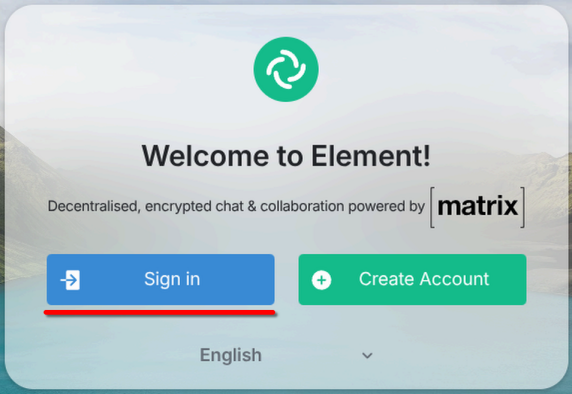
- Open the Element client. Select "Sign In".

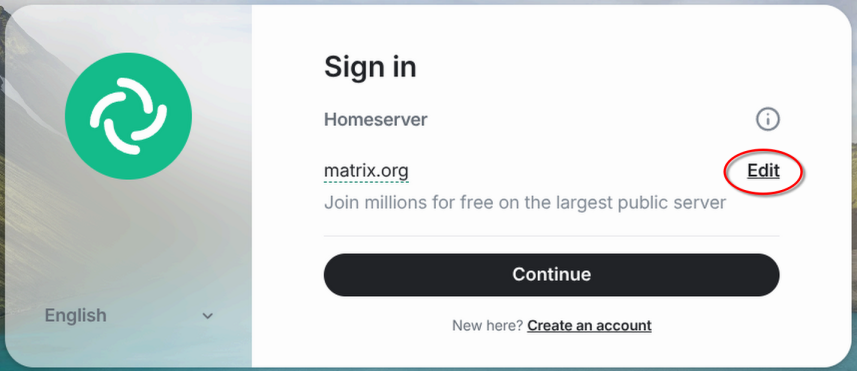
- Select "Edit" under "Homeserver".

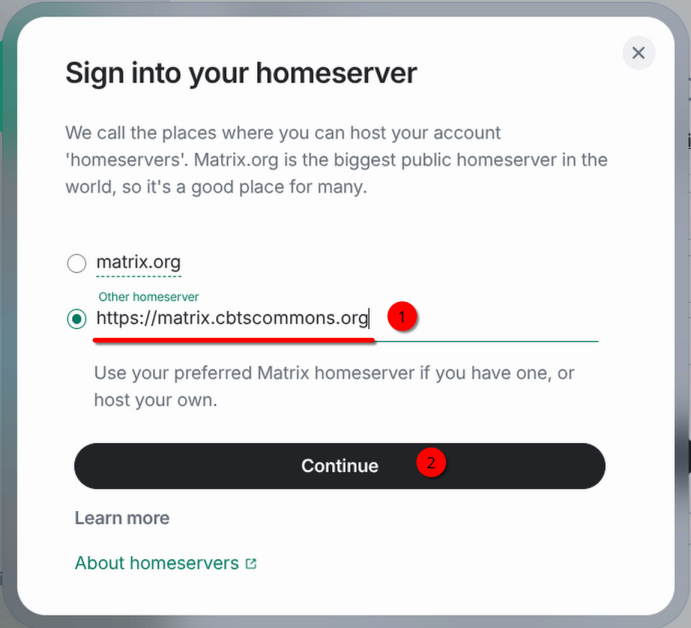
- Select "Other homeserver" and enter the following in the input box:
Select "Continue".https://matrix.cbtscommons.org
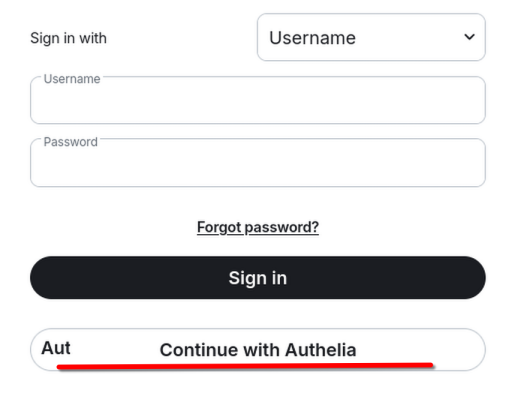
- Sign in using your CBTSCommons.org credentials.
You can either enter them directly in the Username & Password input boxes or use the "Continue with Authelia" option. Authelia is the recommended method but either works.Note: If using the direct login method, your username will take the form @username:matrix.cbtscommons.org. For instance @keach:matrix.cbtscommons.org.
- If you select "Continue with Authelia", you will be taken to your browser to complete signing in.

- Select "Continue" to authorize/sign in to Element.

- You are now signed in.
- If you select "Continue with Authelia", you will be taken to your browser to complete signing in.
- If this is your first time signing in to Element, you are done. If you have signed in before, you will need to verify this device.
2- Sign in to Element Classic (Mobile App)
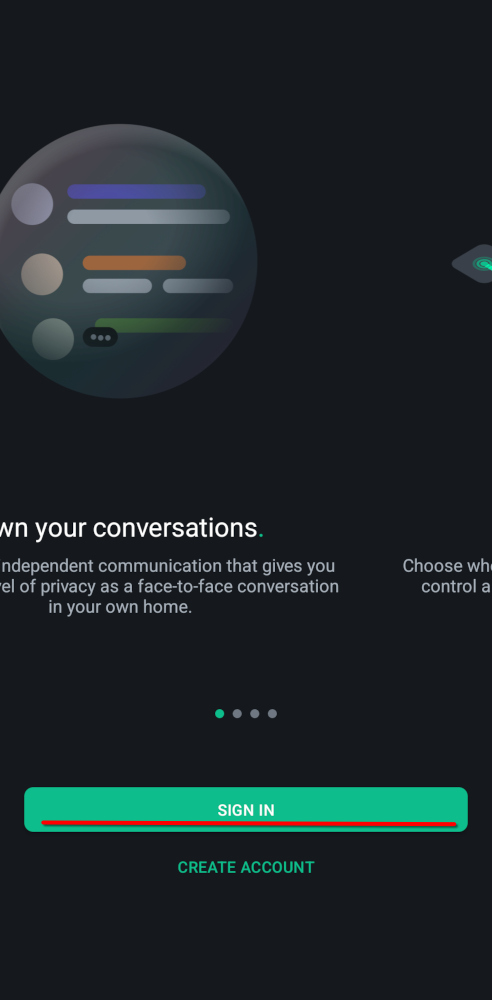
- After installing the Element Classic app, open the app and Select "Sign In".

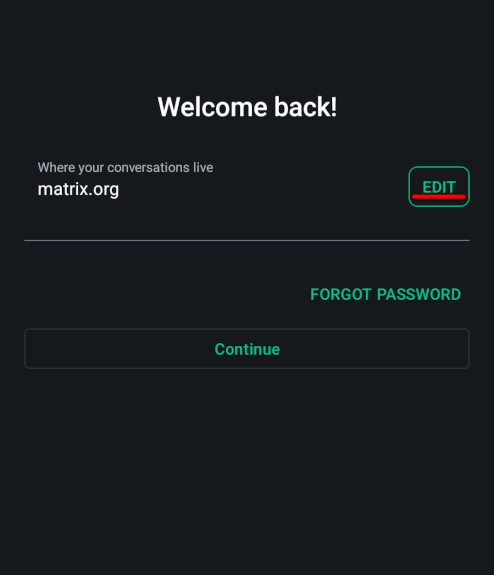
- Select "Edit".

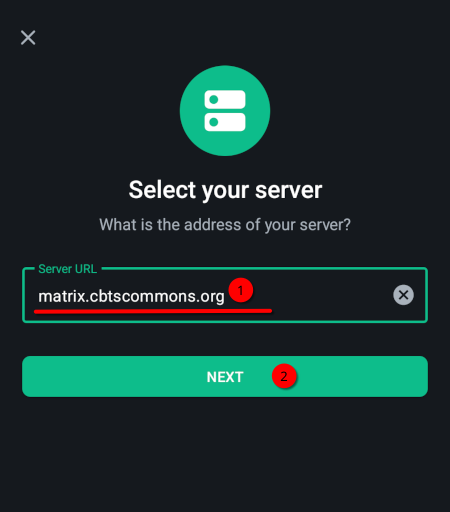
- Remove "matrix.org" and enter "matrix.cbtscommons.org". Click Next.
matrix.cbtscommons.org
- You may either enter your credentials directly, or use Authelia to authenticate. We suggest Authelia.
- Authelia
- Select "Continue with Authelia"
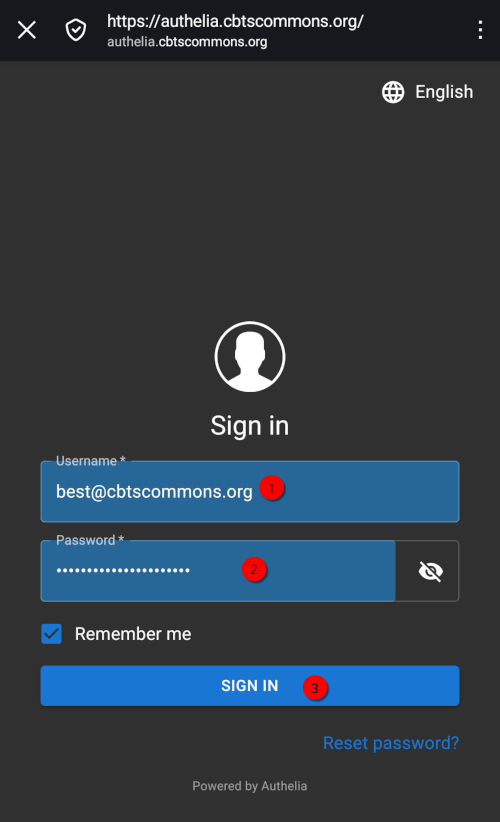
- Your browser will open and you will be asked to sign in. Enter your CBTSCommons credentials and click "Sign In".

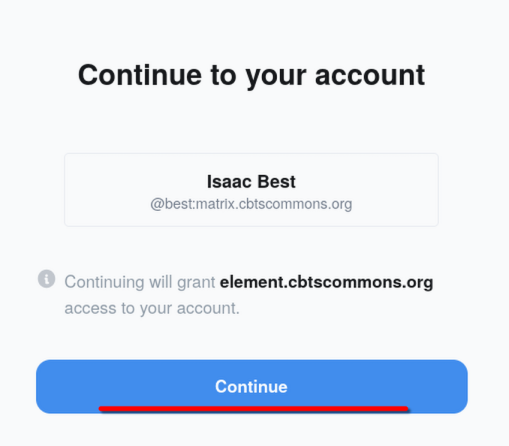
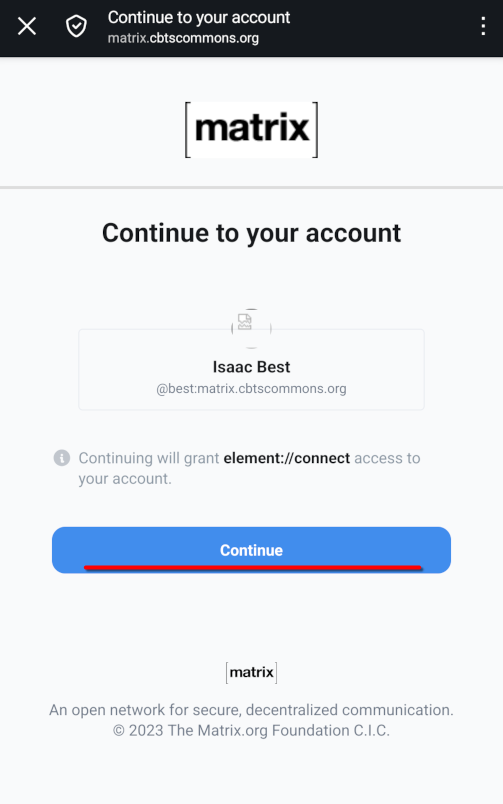
- Click "Continue". If asked to allow opening in Element Classic, select "Open".

- You should now be signed in.
- Enter credentials directly
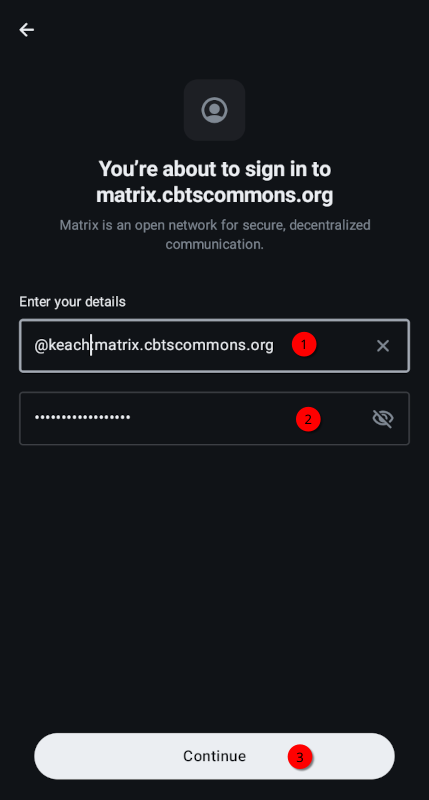
- Enter your CBTSCommons credentials. Click Continue.
Note: Your username will take the form @username:matrix.cbtscommons.org. For instance @keach:matrix.cbtscommons.org.

- You should now be signed in.
- Enter your CBTSCommons credentials. Click Continue.
- Authelia
- If this is your first time signing in to Element, you are done. If you have signed in before, you will need to verify this device.
2 - Sign in to Element X (Element X is not yet fully functional; we do not recommend it)
- After installing the Element app, open this link on your mobile device - CBTS Element provisioning link.
- It should automatically open (or ask to open) in the Element App.
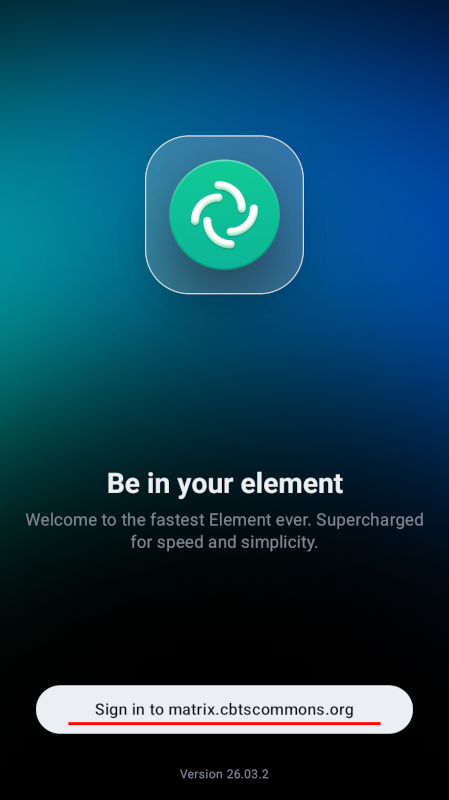
- Select "Sign in to matrix.cbtscommons.org".

- Enter your CBTSCommons.org credentials. Click Continue.
Note: Your username will take the form @username:matrix.cbtscommons.org. For instance @keach:matrix.cbtscommons.org.
- If this is your first time signing in to Element, you are done. If you have signed in before, you will need to verify this device.
Note: When you first set up your account, you will not see any activity. A moderator/admin will need to invite you to the CBTS Space after you set up your account.
Saving Recovery Keys
Element encrypts messages by default; this significantly increases both security and privacy. However, it also makes recovering an account more difficult. If you take a moment now to save your Element recovery key, you can regain access to your message history in the future should you ever loose account access.
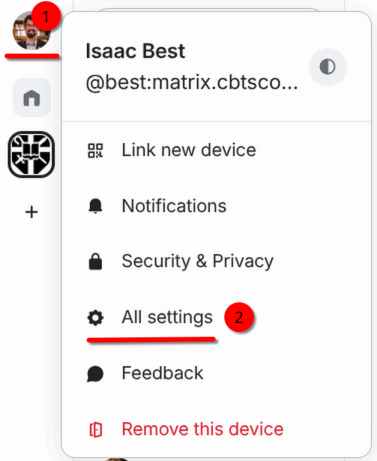
- In Element, click your profile icon on the top left. Then Select "All settings".

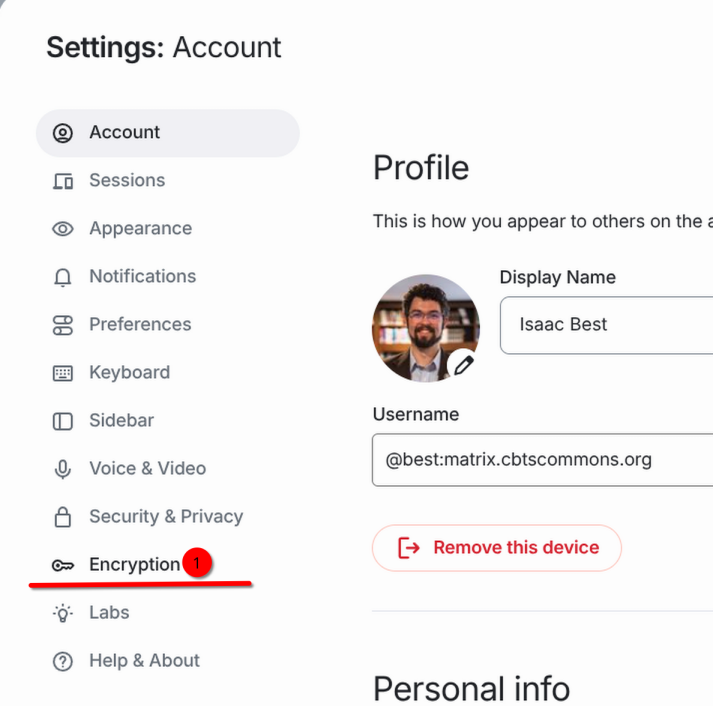
- A Settings window will open. Select "Encryption" in the left sidebar.

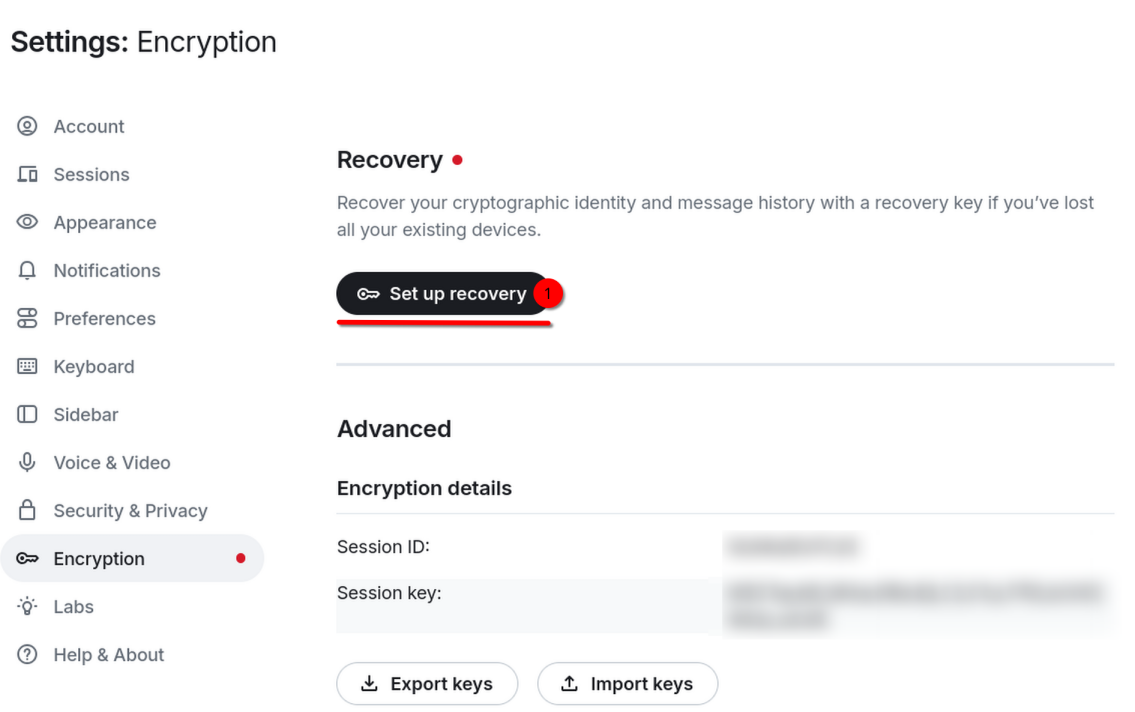
- Select "Set up recovery".

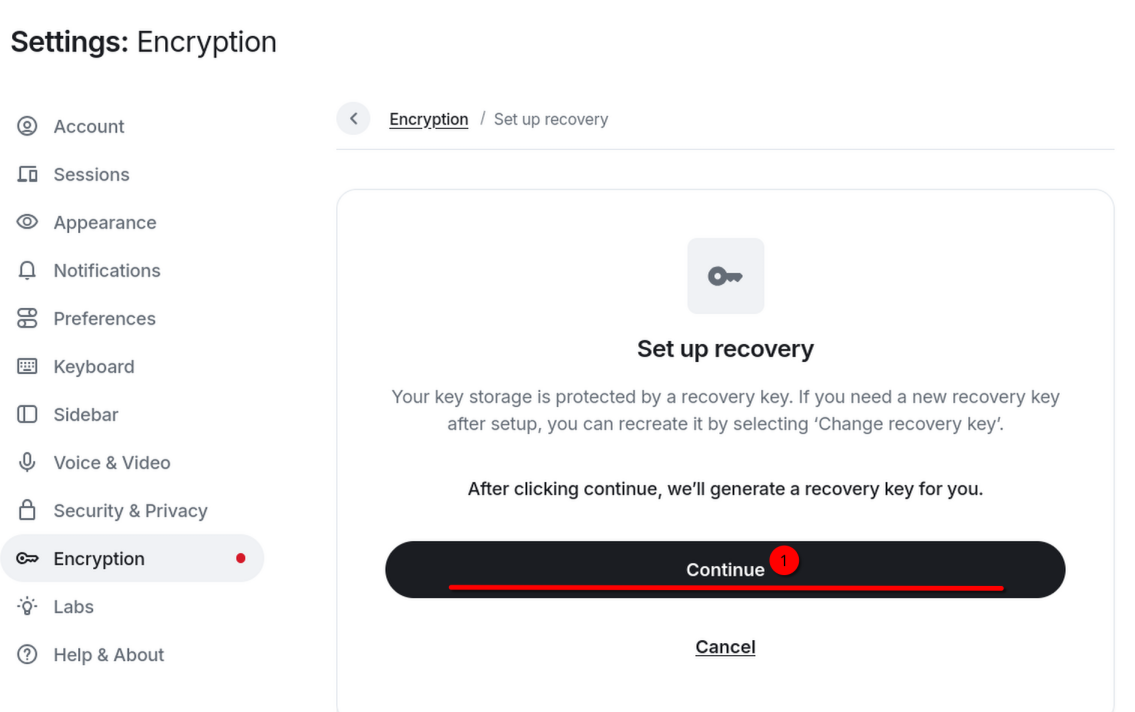
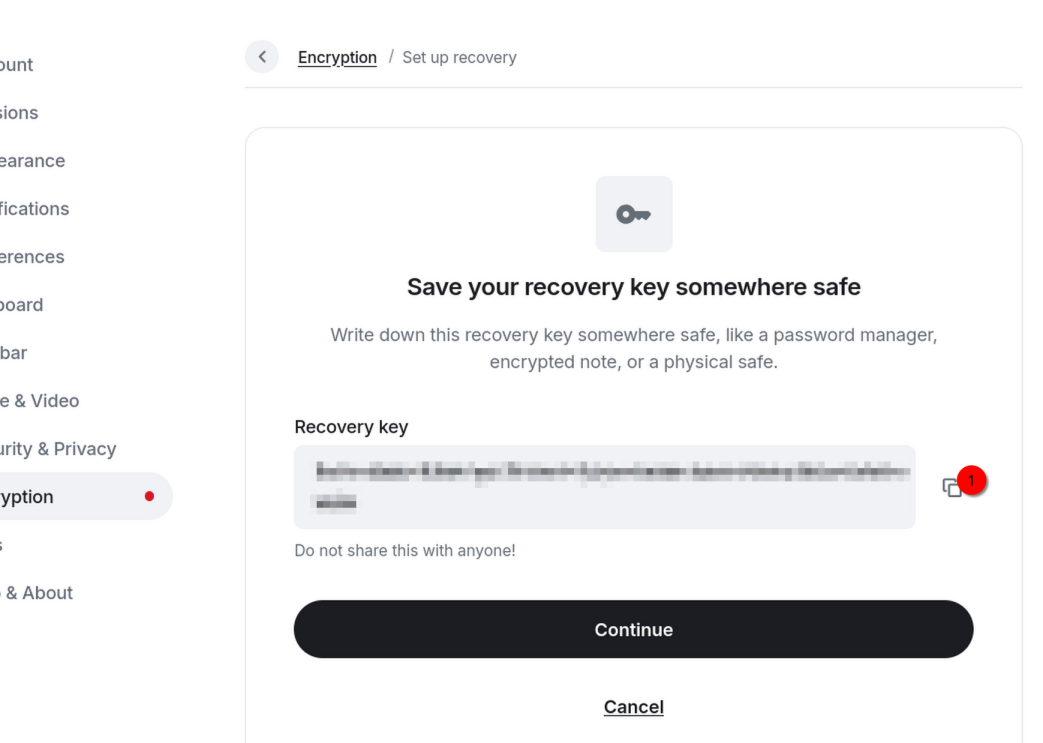
- Select "Continue".

- Copy the recovery key and save it in a safe place, such as a note in your Vaultwarden account.

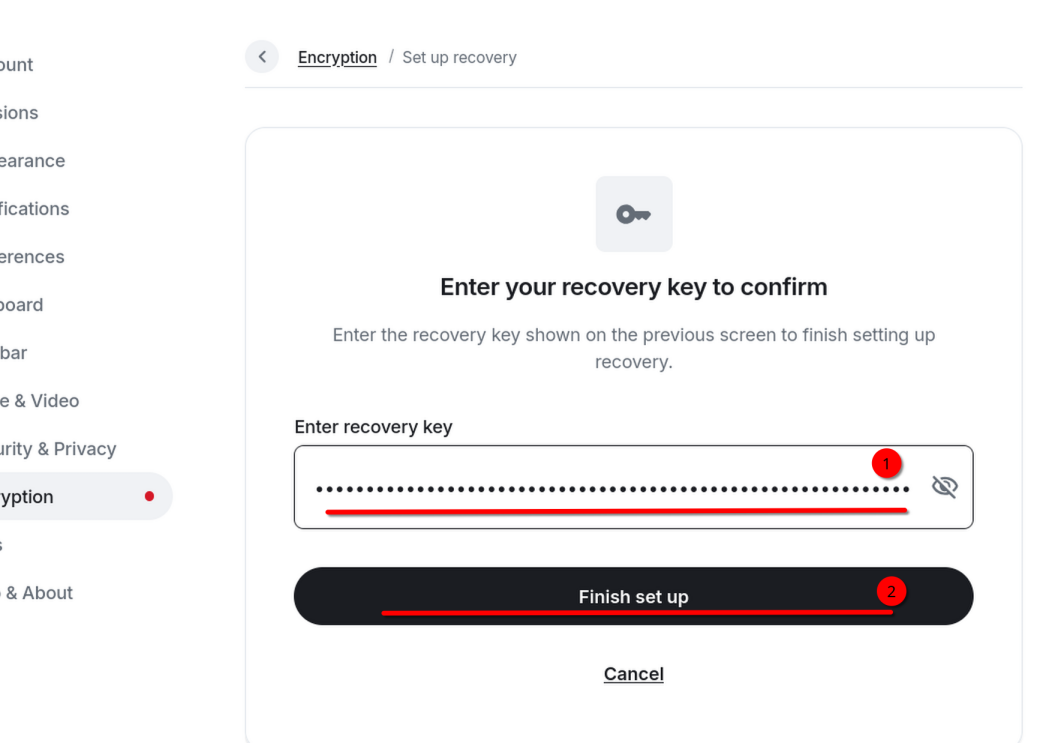
- Click Continue. Paste your recovery key in the box. Then click "Finish set up".

Verify Your Device
When you sign in to Element on a new device (whether a new browser, app, computer, etc), you will be asked to confirm your identity. This requires you to be signed in on another device or to have your recovery key available. Below is the standard process to confirm your identity using another device. If you need assistance at any point, please contact Isaac.
Using another device
- When presented with the confirmation popup, select "Use another device".
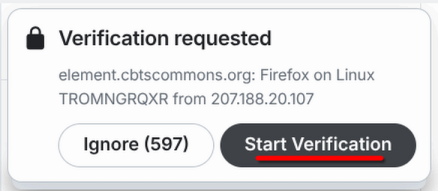
- Open the other "device" (a device can be a browser you are signed in on, your phone app, or desktop app). You will be presented with a verification request. On that other device, select "Start verification".

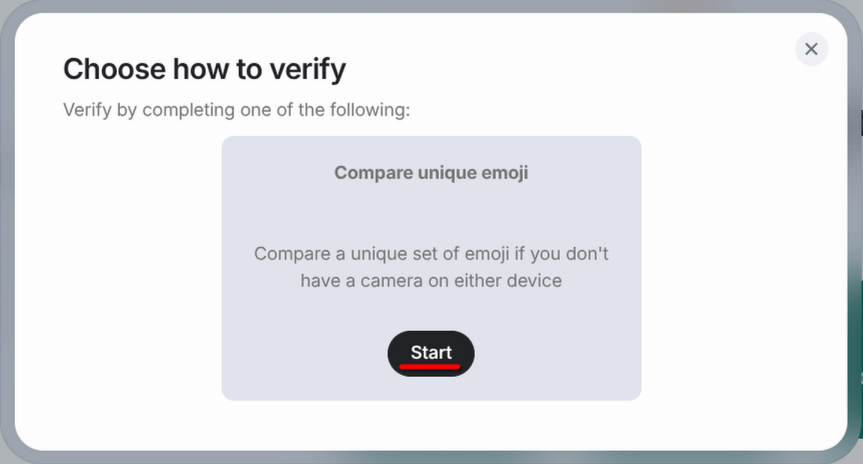
- On the first device, you will be asked to choose a method to verify. There is only one option so select "Start".

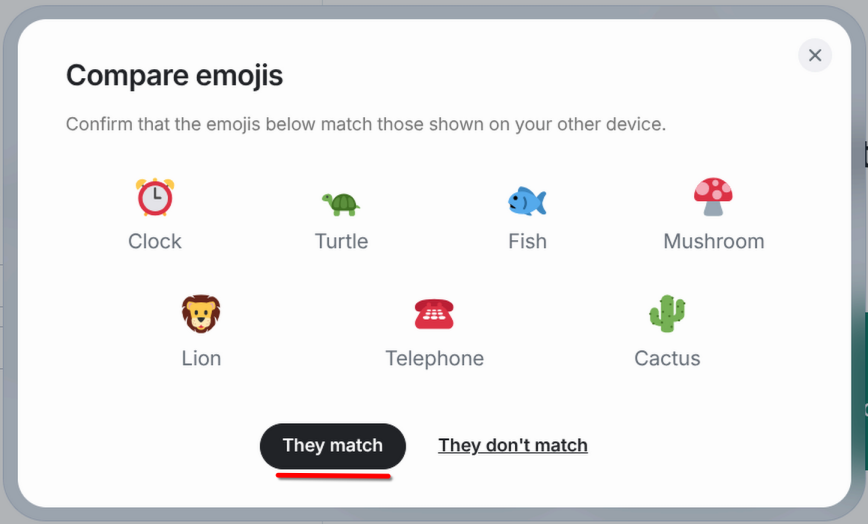
- You will be presented with a short list of emojis on both devices. Check that the emojis on both devices match. If they do, select "They match" on both devices. (The list below will be different than your list.)

- Your device is now verified and ready to us
Using your recovery key
- When presented with the confirmation popup, select "Use recovery key".
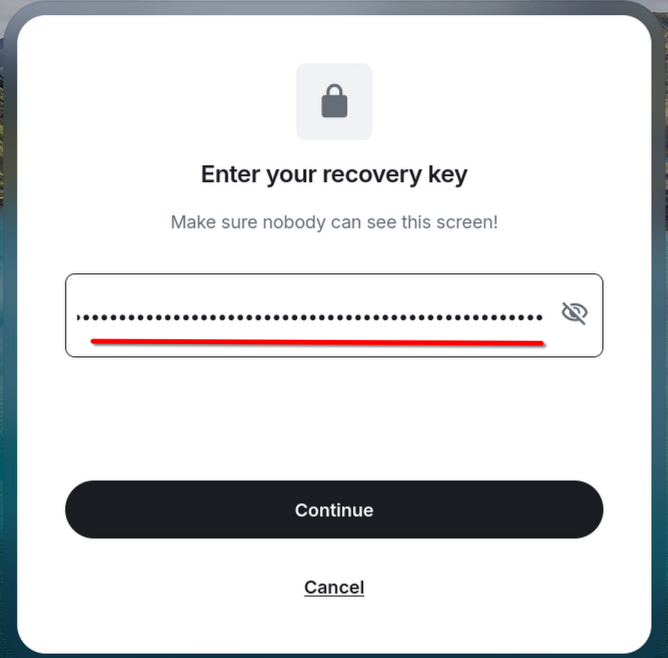
- Enter your saved recovery key in the input box.

- Click "Continue". If you are unable to proceed, you are entering an incorrect recovery key.
- Your new device is now verified.
If you have not yet saved your recovery key, please do so following this guide.