Recording is [only available in supported browsers](https://bookstack.cbtscommons.org/books/jitsi/page/recording-limitations "Recording Limitations").
1. Once logged in to the meeting, click the three dots button on the bottom bar. [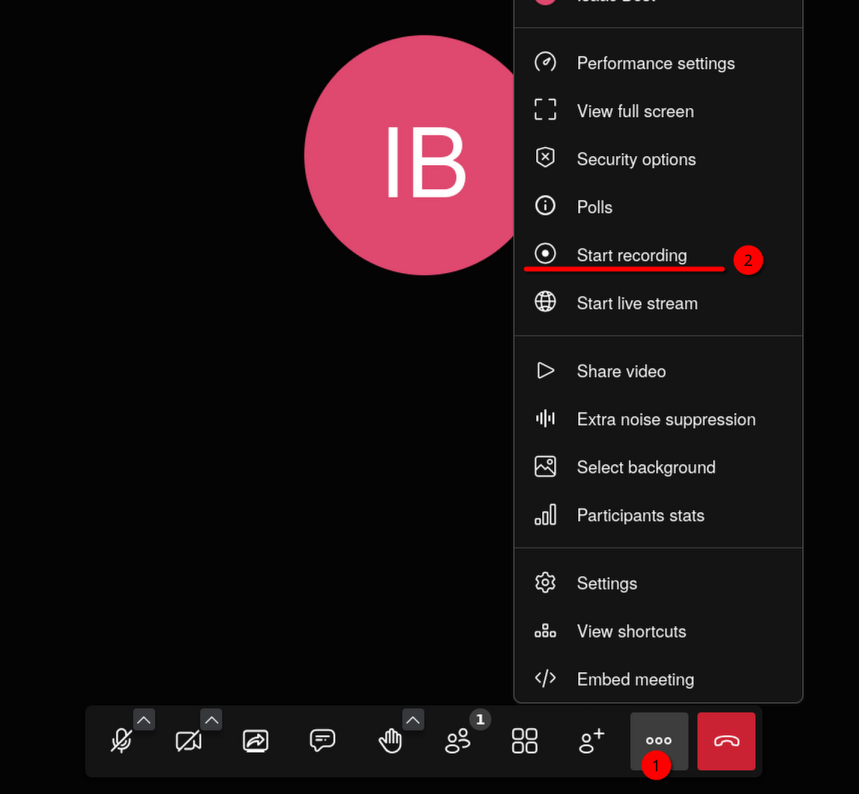](https://bookstack.cbtscommons.org/uploads/images/gallery/2026-04/a5cimage.png) 2. Then select "Start recording". 3. A recording options pop-up will open. Select the "Save recording file locally" option, then click "Start recording". [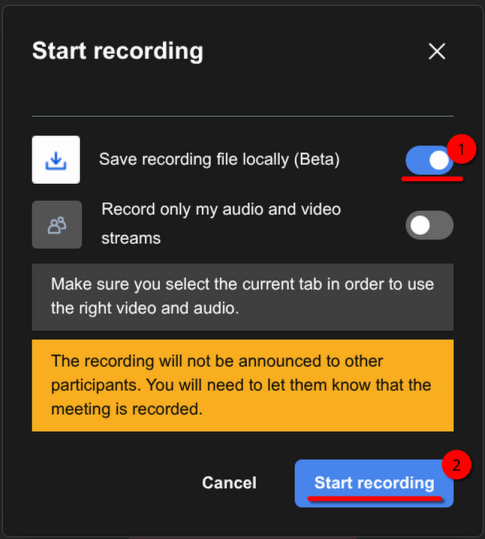](https://bookstack.cbtscommons.org/uploads/images/gallery/2026-04/Byximage.png)If you do not see the "Save recording file locally" option, see the [Recording Limitations article](https://bookstack.cbtscommons.org/books/jitsi/page/recording-limitations "Recording Limitations").
4. You will be asked where to save the meeting recording. Select a location and file name. 5. A pop-up will ask your permission to "Allow jitsi.cbtscommons.org to see this tab?"; select allow. [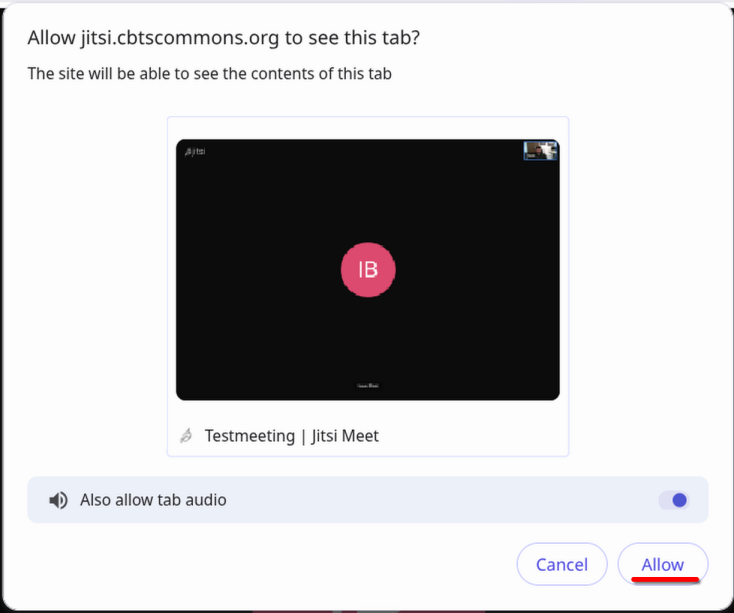](https://bookstack.cbtscommons.org/uploads/images/gallery/2026-04/Bifimage.png) 6. The recording will start. Once your meeting is done, before you exit the meeting, select the same three dots button on the bottom bar and then click "Stop recording". [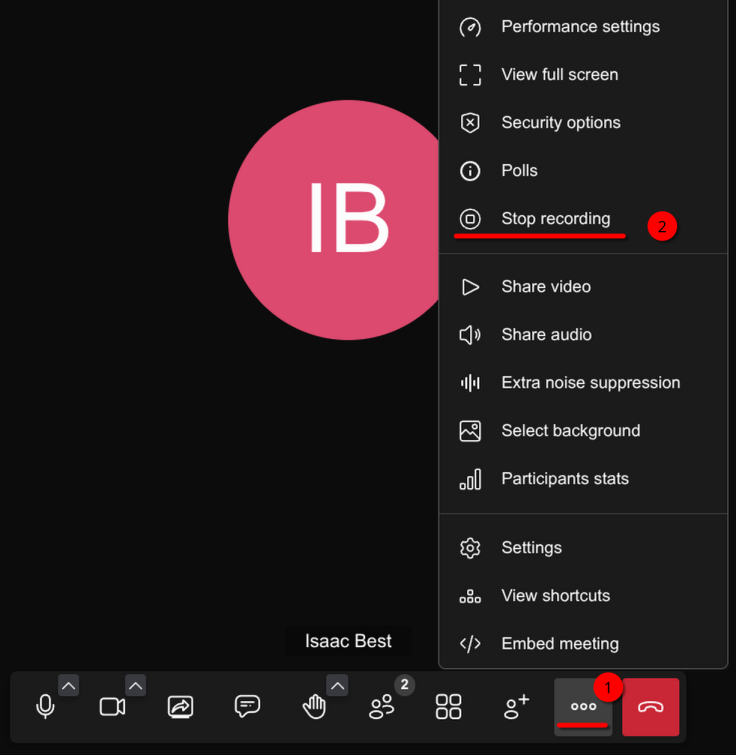](https://bookstack.cbtscommons.org/uploads/images/gallery/2026-04/Yxcimage.png) 7. Your recording will be saved to the file & location selected in step 4.