Troubleshooting
- Why does the paper I submitted on Pathway display in a different format?
- Resolving an "Expired timestamp" error - CBTS Hub
- Why won't my Pathway course complete/close out?
Why does the paper I submitted on Pathway display in a different format?
When you submit a document as a paper submission, take note that a version of the document will appear on Pathway where the format will look different than what you submitted.
Do not be concerned with this, our grader will grade from the document that you submitted, which should retain the formatting which you submitted.
Resolving an "Expired timestamp" error - CBTS Hub
Expired timestamp errors are caused by an inaccurate device clock. Correct your device time to login to the Hub.
If you are receiving an "Expired timestamp" error when accessing the CBTS Hub, there is likely a simple fix.
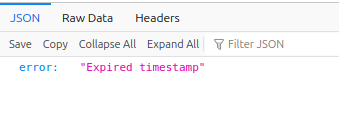
Most commonly, this error occurs when your device's clock is inaccurate. Even a small inaccuracy can cause this issue. The Hub's authentication depends on your computer/device accurately knowing the time; otherwise, it is unable to safely use your Pathway login to grant you access.
To resolve the error, simply correct the clock on your computer/device. Below are links to instructions for changing the clock on the most common operating systems:
Please check your clock settings and make sure your clock is set to automatically update/correct its time. If you are unable to use the automatic set feature, please check your clock against another device and adjust as needed; remember that even a small inaccuracy can cause this error, so make sure both clocks read the same time.
If you are still unable to access the Hub after correcting your clock, please contact us and we will assist you in regaining access to the Hub.
Why won't my Pathway course complete/close out?
There are two primary reasons your Pathway course may not move to Completed:
- You simply missed an item that is required to complete the course.
- The course if a live course (not self-paced).
In the second case, live courses do not auto-complete like self-paced courses. It is the responsibility of the professor to mark students complete in the course.
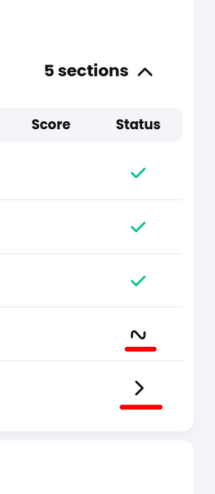
In the first case, simply go back through the course and make sure every portion has a green check mark next to it. If you find any that are not marked with a green check mark, open those items and select "Complete and continue.