Tutorials/How-To
- Adding Proctors in Pathway
- How do I resume active status?
- How do I request a class extension?
- How do I request the exam/quiz password (access code) for my proctor?
- How do I use the Remote Research Library?
- CBTS Hub
- ProctorTrack
Adding Proctors in Pathway
Proctor details must be entered in Pathway to request quiz/test passwords in the Hub. This article details how to enter/register proctor information in Pathway.
This guide assumes you are using a laptop/desktop.
-
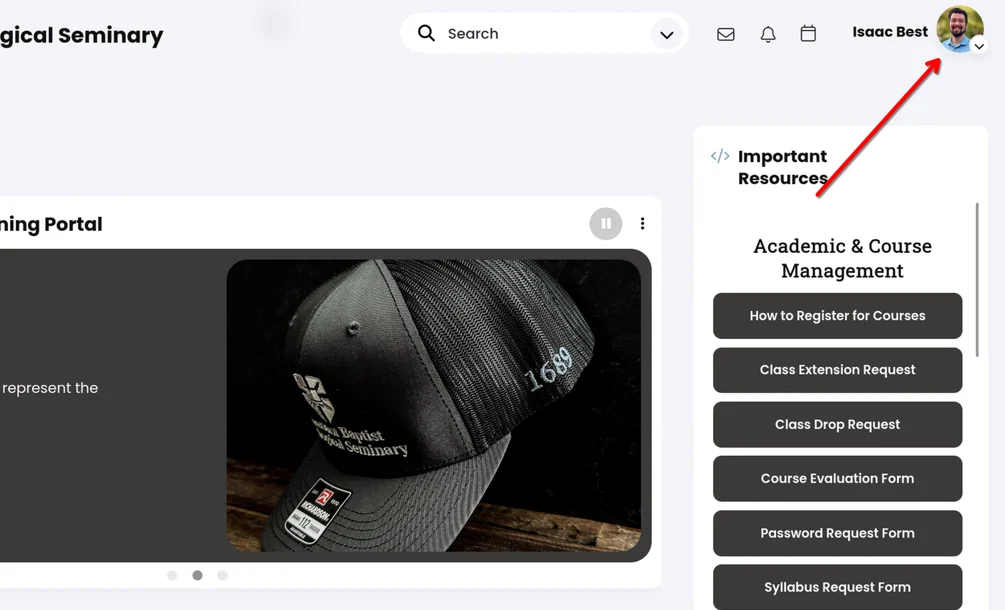
From the Pathway homepage, click your username/profile picture in the upper right. Do not click the little arrow.
(Alternately, from the Hub, click the "Edit Pathway Profile" link and skip to step #4 below.)
-
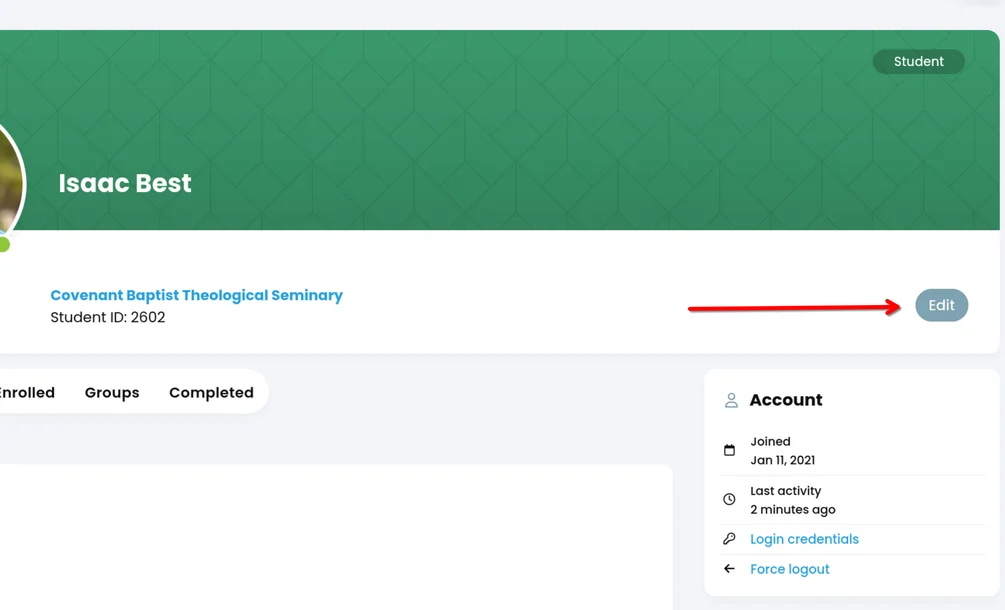
You will be taken to your profile page. Click the "Edit" button on the right.

-
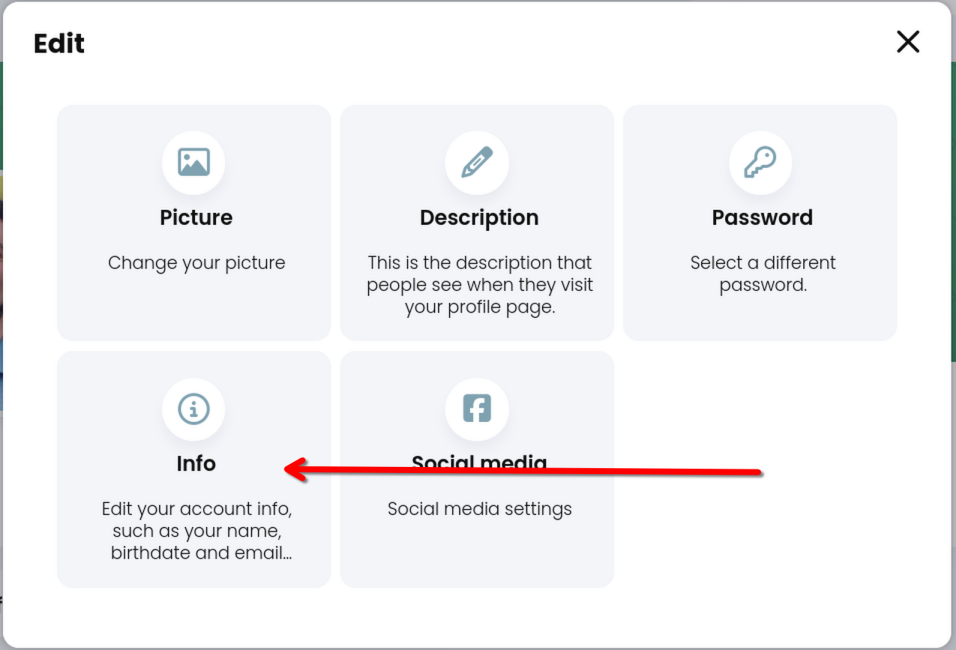
Select "Info" in the pop-up.

-
Scroll to the bottom of the page to the section titled "Proctor Information". Enter your proctor's information in the Proctor 1 boxes. If you have a backup proctor (or two) enter that information in the other boxes.

- Click Save. Your proctors are now registered in Pathway. Please note that you will not receive a confirmation or approval notification.
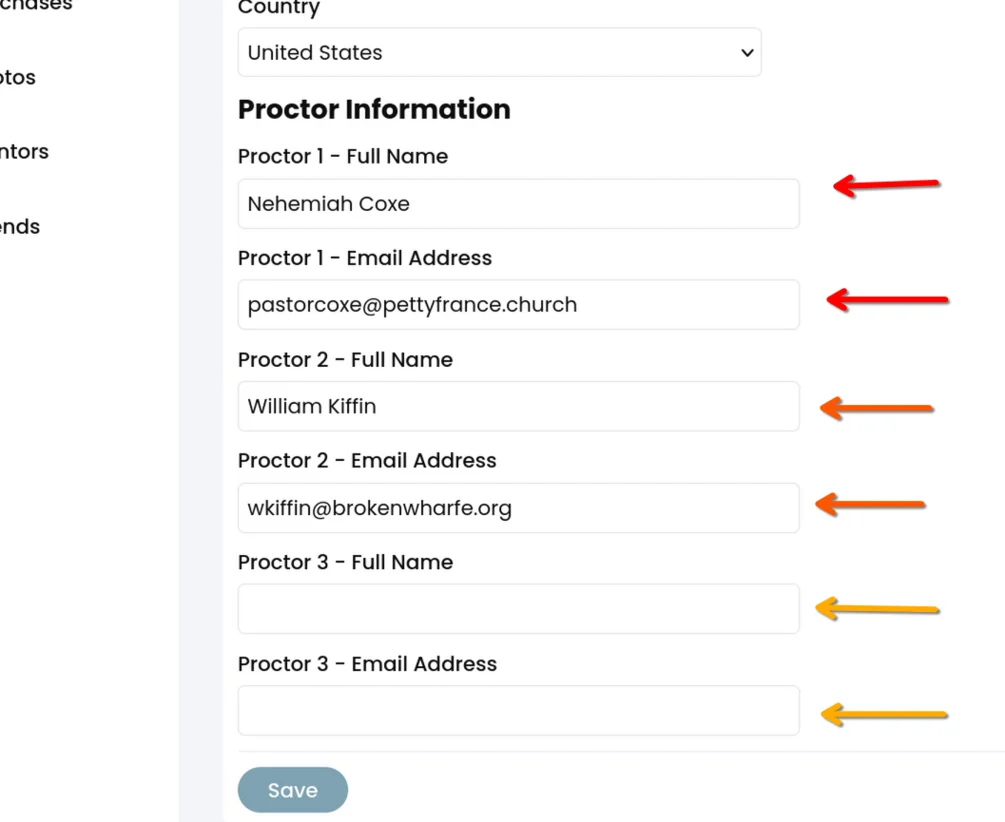
Note: Make sure each proctor's email address is entered correctly or the password emails will not be delivered.
How do I resume active status?
Inactive students should fill out the reactivation request form to be returned to active status.
If you entered inactive status within the past four semesters, simply fill out the Reactivation Request Form.
Once you have filled out the form, you are responsible for paying the semester fee which can be done in the CBTS Hub.
If you entered inactive status more than four semesters ago, you must reapply.
How do I request a class extension?
To request a CBTS Pathway class extension, please submit the CBTS Class Extension Request.
How do I request the exam/quiz password (access code) for my proctor?
When you are planning to take a quiz or test on CBTS Pathway, log in to the Hub, click the Passwords link at the top (or the Passwords link in the hamburger menu if on mobile) and fill out the form. Only courses which you are enrolled in will appear as options for selection and only proctors that are registered in Pathway will be able to be selected.
After submitting the form, your proctor will receive an email with the password you need in order to start the quiz/exam and you will receive a confirmation email that does not contain a password.
How do I use the Remote Research Library?
The RRL includes hundreds of theological journals and magazines. However, the search functionality for these resources will be somewhat different from the books in your Logos library. Below are some instructions to search your journals.
Path 1 - Follow this guide: How to Search Logos Journals
Path 2 - That being said, there is one other way you can search the journals. It's sometimes difficult to explain this in words, so check out this video which shows you how to do the search. It was designed to train people on how to use Logos, specifically with the RRL.
At around the 19 minute mark (you’ll see a dot for a chapter mark) the section shows how you can quickly search all your journals. You can use this to search for a passage or a topic. And, you can follow this technique to search any book or set of books. Once you filter the books by commentaries or journals or Bible dictionaries, you can do the same search. However, most of the time that’s not needed because your Passage Guide will bring back everything relevant to the passage (commentaries) and your Topic Guide will bring back Bible dictionaries and other info automatically.
If you have any question about Logos Bible Software, please email support@cbtseminary.org.
CBTS Hub
How do I use the CBTS Hub?
CBTS Hub is our student payment portal. You can use it to pay semester fees, enroll in courses, and handle other school-related charges. This guide walks you through the steps to successfully navigate and use the system.
Step 1: Access CBTS Hub
Log into Pathway. Click on your name in the top-right corner to view your profile.
Click on the Hub button on the bottom-right corner.
Step 2: Choose a Category
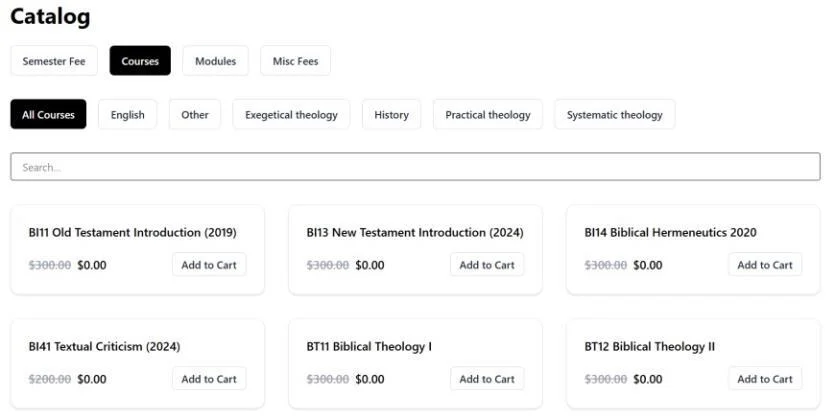
You’ll see different categories for various types of purchases such as semester fees, courses, etc.
Click a category to view available items.

Step 3: Add Items to Your Cart
After browsing the category (e.g., Courses), click 'Add to Cart' for any item you wish to purchase. You can filter courses by category for easier navigation.
Step 4: Review Your Cart
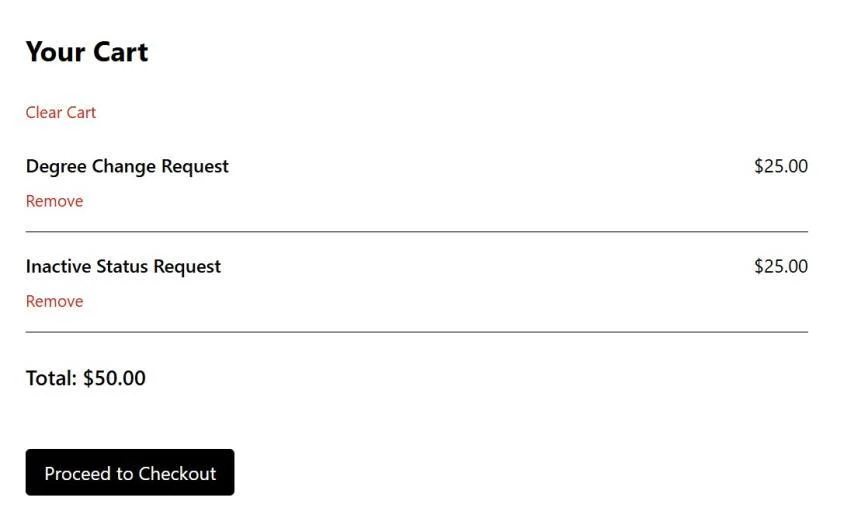
Click on the 'Cart' link at the top of the page or the cart icon.
You can remove individual items or clear the entire cart.
Step 5: Proceed to Checkout
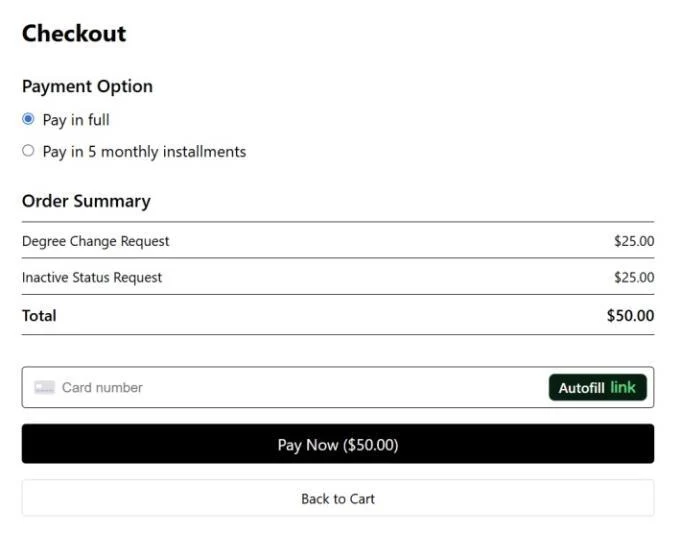
Click 'Proceed to Checkout.' Choose to pay in full or in installments, enter your card information, and complete the transaction.
Step 6: View Past Orders
To review your past orders, click on your profile icon and select 'Orders.'

Frequently Asked Questions (FAQ)
Q: Can I pay in installments?
A: Yes, CBTS Hub allows you to choose between paying in full or in installments during checkout. Check out this article for details.
Q: What if I accidentally purchase the wrong item?
A: Before payment, you can remove items from your cart. After payment, please contact
support@cbtseminary.org for assistance, or use the Support tab within Pathway.
Q: How do I know my payment was successful?
A: You'll receive a confirmation screen and can view all completed orders in your profile under 'Orders'.
Q: Who do I contact for technical help?
A: Please reach out to support@cbtseminary.org or click the "Contact Us" button at the top of this page.
ProctorTrack
How do I take a test using ProctorTrack?
Here are the steps to test with ProctorTrack.
The use of ProctorTrack is not preferred and is made available only as a last resort to ensure students are still able to complete their coursework.
If this is your first time using ProctorTrack, please refer to this article for setup instructions.
-
If you haven't already, fill out the Proctored Exam Request form.
-
Note: The email address you enter on this form is the address your ProctorTrack account will use. It does not need to be the same address you use to access Pathway but CBTS is not able to later change which address you use to access ProctorTrack without creating a new ProctorTrack account for you.
-
-
If you are approved to use ProctorTrack, CBTS will assign the requested class to you. We will then send you an email stating your proctoring is ready.
- If you have set up ProctorTrack before, you will receive one registration email from ProctorTrack for each assessment in your class. You may simply delete these registration emails.
- If you HAVE NOT used ProctorTrack before, please refer to this article for setup instructions.
-
Sign in to ProctorTrack at https://testing.verificient.com/login.
-
Note: CBTS is located in the USA. If you are located in the EU, Canada, or Australia, ProctorTrack will suggest using a different link. Use the link we have provided here. You will not be able to take quizzes/tests using other links.
-
-
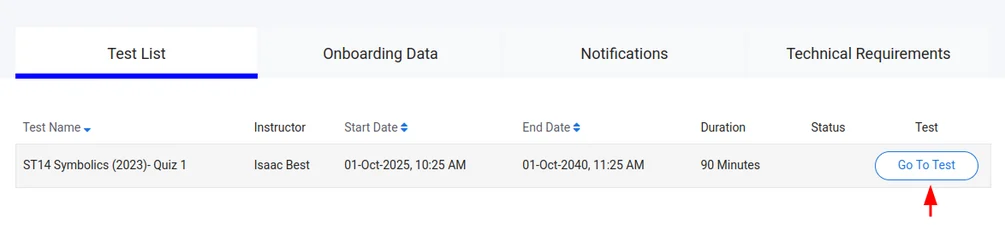
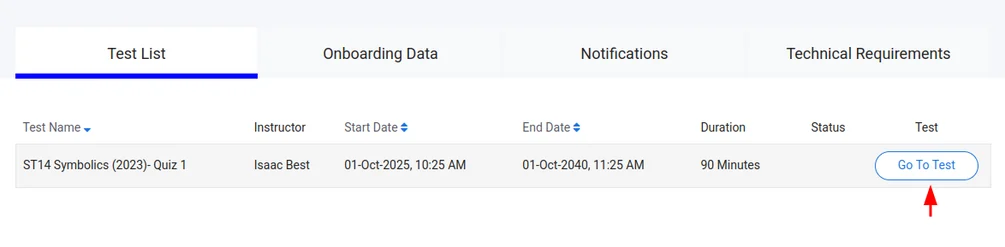
Once signed in, locate your test and select the "Go To Test" button.

-
Click the "Open ProctorTrack" button. ProctorTrack will open.
- You may need to allow the page to open the ProctorTrack application. If so, simply click the "Open..." button.

- You may need to allow the page to open the ProctorTrack application. If so, simply click the "Open..." button.
-
Once in the ProctorTrack browser, you will be asked to login to the ProctorTrack website again. Do so and repeat steps 4 & 5 above.
-
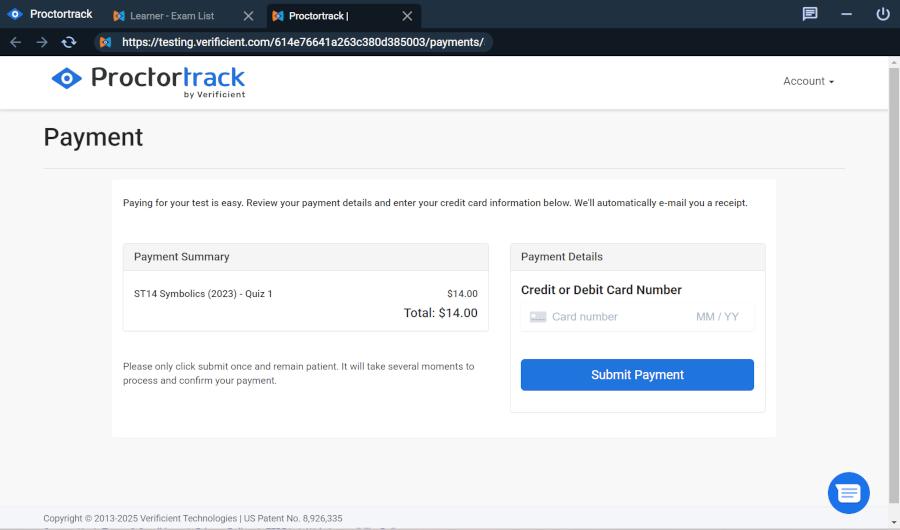
Enter your payment details and submit the payment.

-
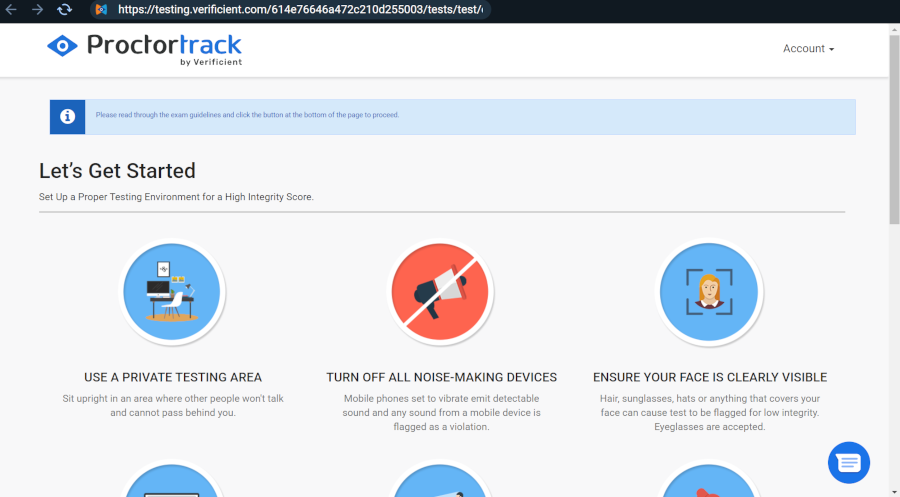
You will be shown a "Let's Get Started" page. Read through the guidelines and make sure your testing area conforms to the requirements. Then select "Next" at the bottom of the page.

-
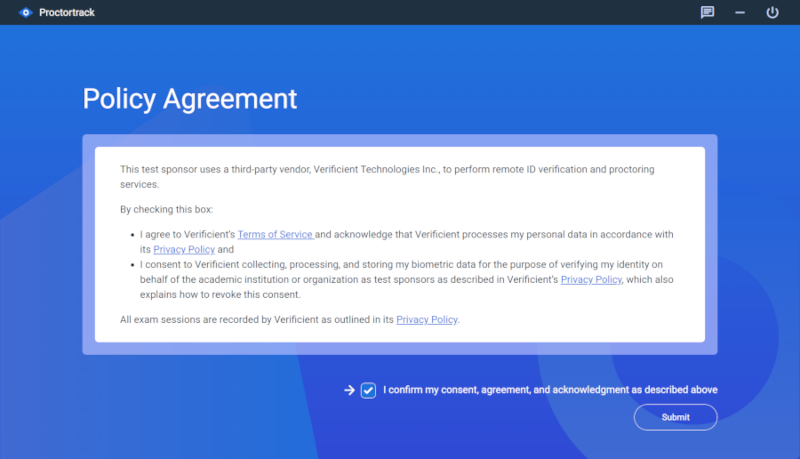
After a short delay, you will be presented with the ProctorTrack Policy Agreement page. Select the box to indicate your consent to the policies and hit "Submit."
-
Note: ProctorTrack operates under its own privacy and data-handling policies, which may include collecting video, audio, and biometric data for exam monitoring. CBTS has no control over or access to this data.

-
-
A system check will begin; wait for this to finish (it will take about a minute). Correct any problems that may be found.
-
Note: If processes from Chrome or Edge are running in the background, ProctorTrack may not allow you to continue. Either force Edge/Chrome to close or turn of the "run in the background" option in the Chrome/Edge settings. You may also need to turn off Startup Boost in Edge.
-
-
Next, you will be presented with a Face Scan. Follow the instructions shown. Submit your scan when ready.
-
The exam-specific guidelines will be shown. Click "Start Proctoring" once you have made sure you are in compliance with the guidelines.
-
You will be taken to Pathway. Click "Copy Code/Password" to dismiss the popup. Sign in using your credentials. You should be taken to your test/quiz. (If not, navigate to your class and the quiz/test you need to take.) Paste the code from ProctorTrack into the password box and click "Access".
- If the code does not paste/is not in your clipboard, select the key icon in the video window and select "Copy Exam Password" to copy the code again.
-
Take the quiz/test.
-
Once done, make sure to submit the quiz/test in Pathway! Only then click "End" in the top right to end the proctored session.
-
Wait for the ProctorTrack browser to finish uploading the session. Then you may close the ProctorTrack browser by clicking the power button on the top right.

How do I prepare to take a test using ProctorTrack?
Here are the steps you will need to set up ProctorTrack.
The use of ProctorTrack is not preferred and is made available only as a last resort to ensure students are still able to complete their coursework.
- Fill out the Proctored Exam Request form.
-
Note: The email address you enter on this form is the address your ProctorTrack account will use. It does not need to be the same address you use to access Pathway but CBTS is not able to later change which address you use to access ProctorTrack without creating a new ProctorTrack account for you.
-
- If you are approved to use ProctorTrack, CBTS will assign the requested class to you. We will then send you an email stating your proctoring is ready.
- If you have used ProctorTrack before, you will receive one registration email from ProctorTrack for each assessment in your class. You may simply delete these registration emails.
- If you HAVE NOT used ProctorTrack before, wait until you have received the notification email from CBTS. Then, navigate to https://testing.verificient.com/account/password/reset and request password reset. Click the reset link in the email ProctorTrack sends you and enter a password for your ProctorTrack account.
- Sign in to ProctorTrack at https://testing.verificient.com/login.
-
Note: CBTS is located in the USA. If you are located in the EU, Canada, or Australia, ProctorTrack will suggest using a different link. Use the link we have provided here. You will not be able to take quizzes/tests using other links.
-
- Once signed in, locate your test and select the "Go To Test" button.
- Select the "Download ProctorTrack" button. Once the file is downloaded, install it.
- You are now prepared to start your first proctored test/quiz. See this article for detailed instructions on taking a test.