2. Next Steps
You will not immediately have access to the CBTS shared passwords; we can only grant accounts access after they have been set up.
-
- After you have created your Vaultwarden account, please email Isaac (best@cbtseminary.org) to let him know you have set up your Vaultwarden account; he will grant you access to the CBTS shared passwords.
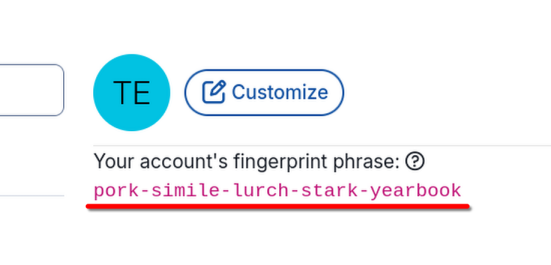
- In that email, please include your Vaultwarden account's fingerprint phrase:
- Go to your Vaultwarden Account settings - https://vaultwarden.cbtscommons.org/#/settings/account
- Copy the fingerprint phrase to your email draft

We recommend installing the browser extension for ease of use. The extension setup page will direct you to the correct extension/add-on store to install it. Then, log in to Vaultwarden in the extension.
You may find it useful to install a mobile apps to access Vaultwarden on your phone.