Connect Your Google Calendar
- Open the CBTSCommons Calcom tool - https://calcom.cbtscommons.org.
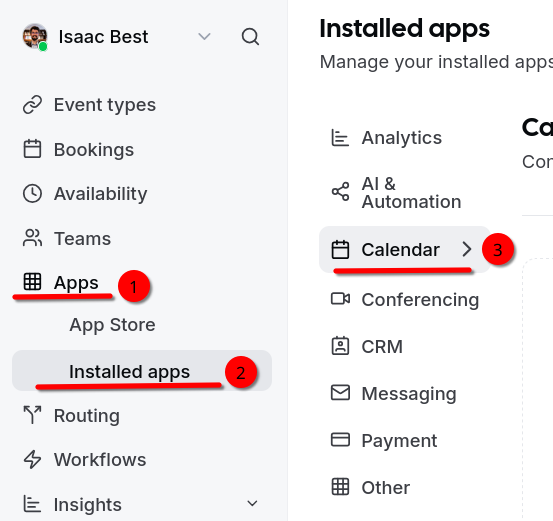
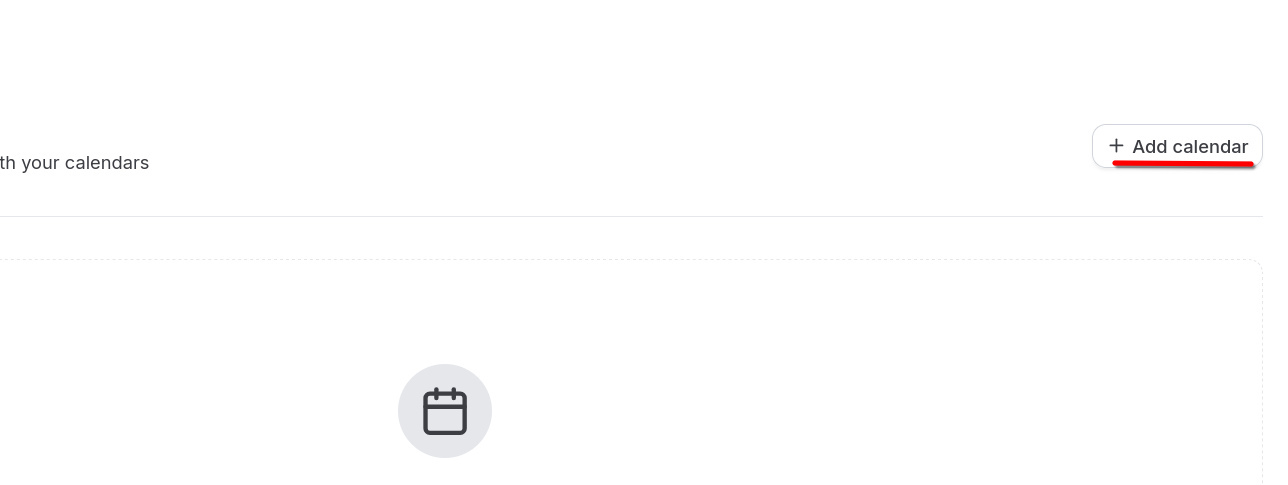
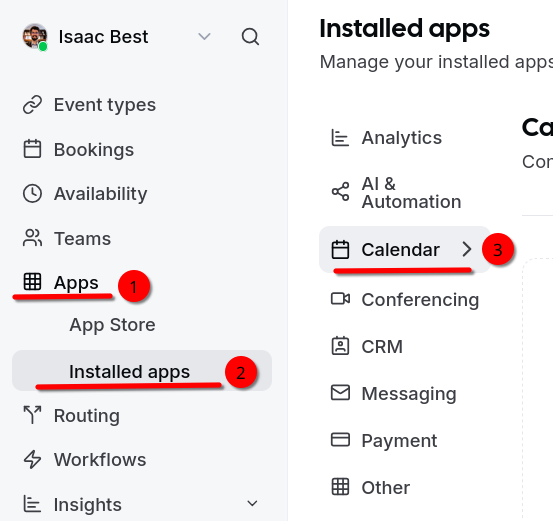
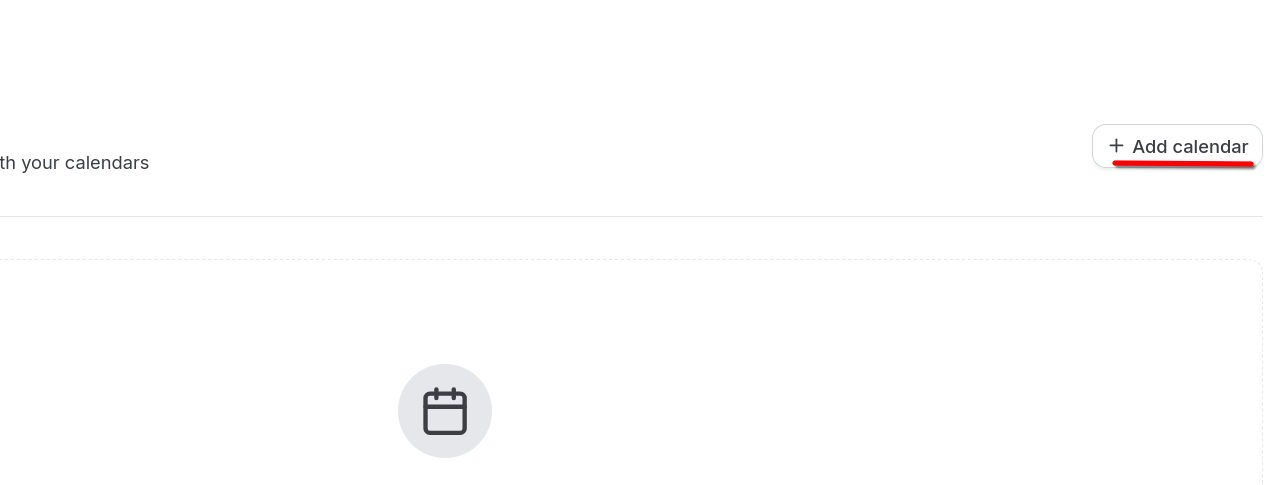
- On the left sidebar, go to Apps -> Installed Apps -> Calendar. Select "+ Add calendar" on the top right.
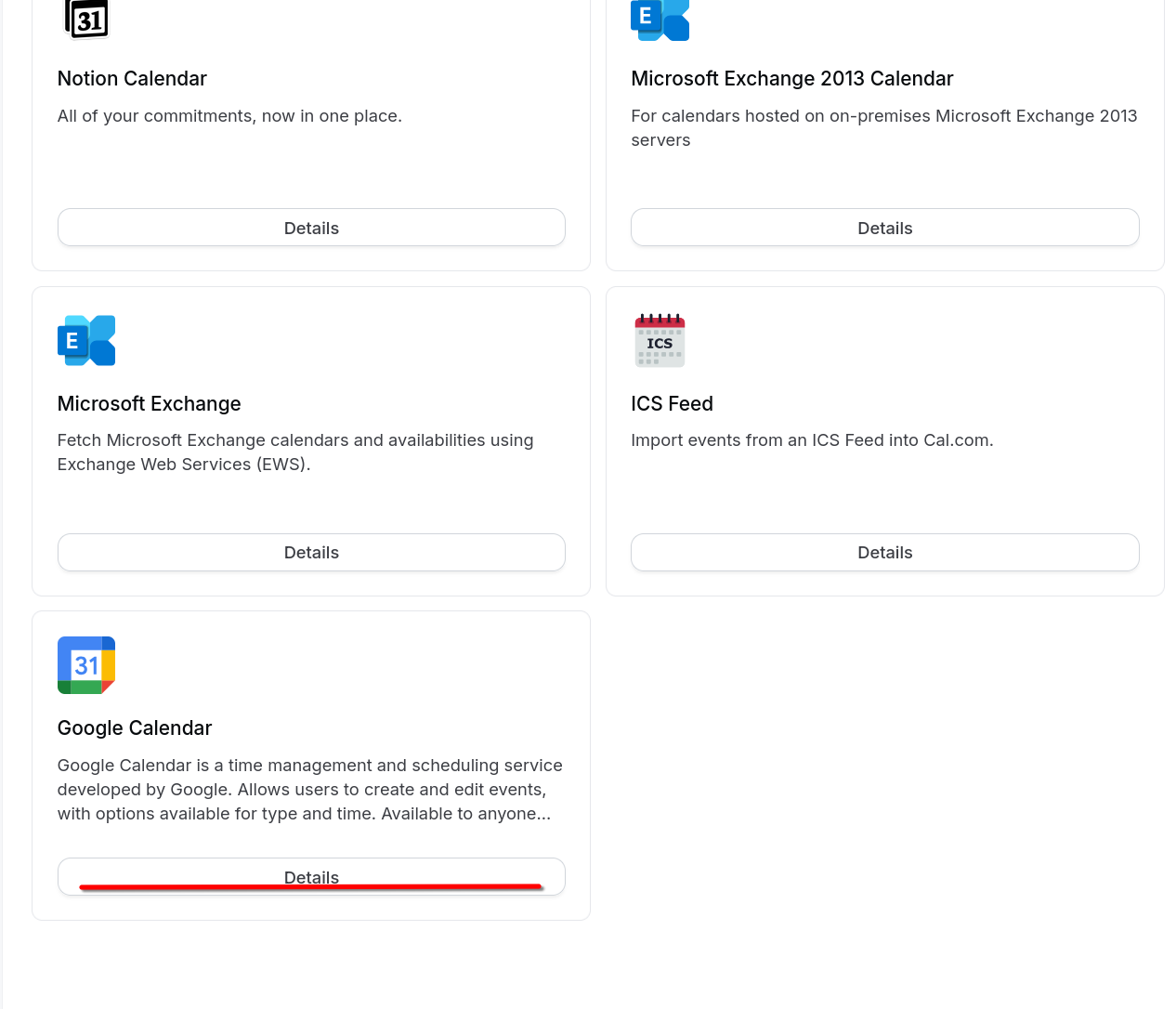
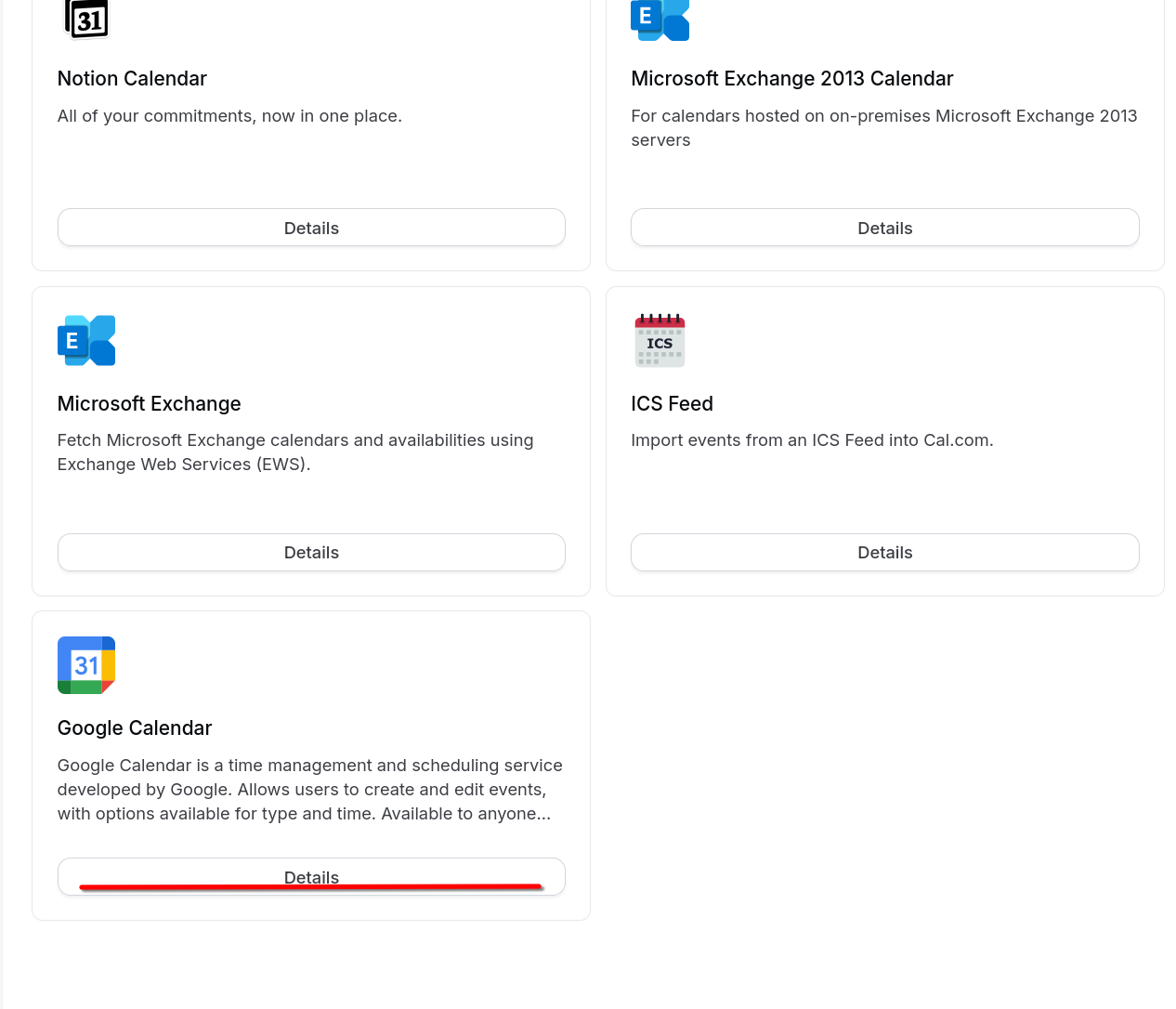
- Scroll down to the Google Calendar app and select Details.
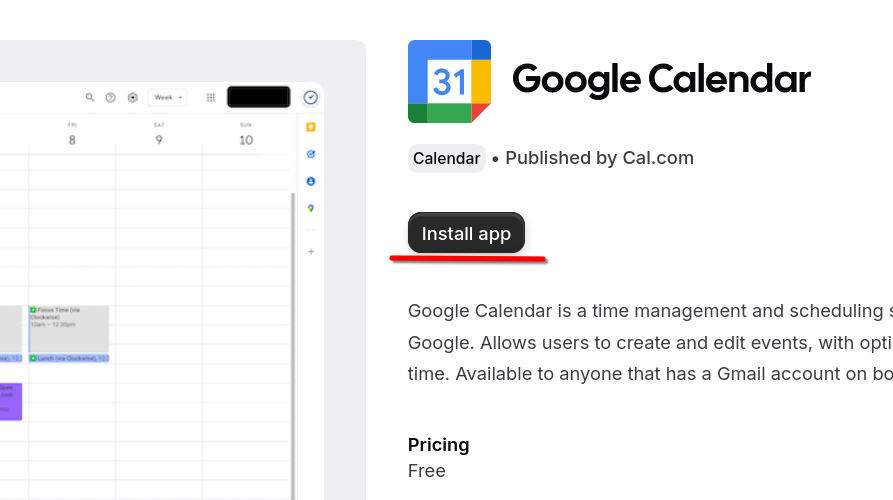
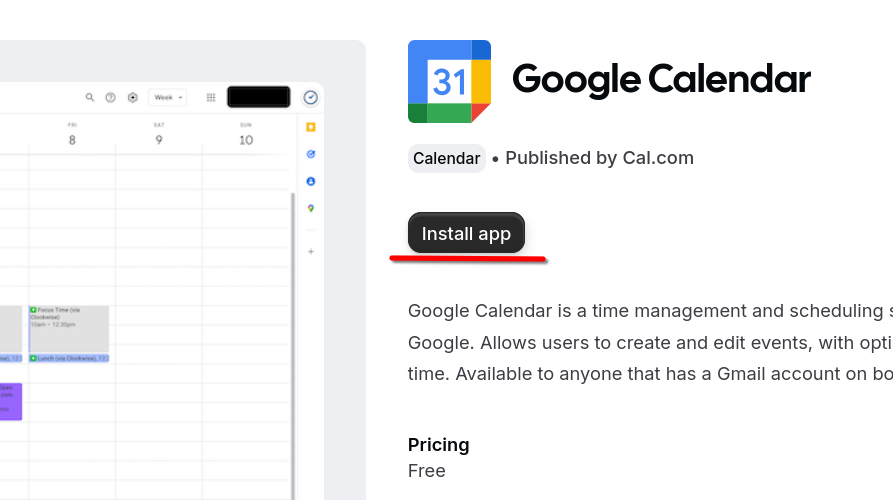
- On the next page, select "Install App"
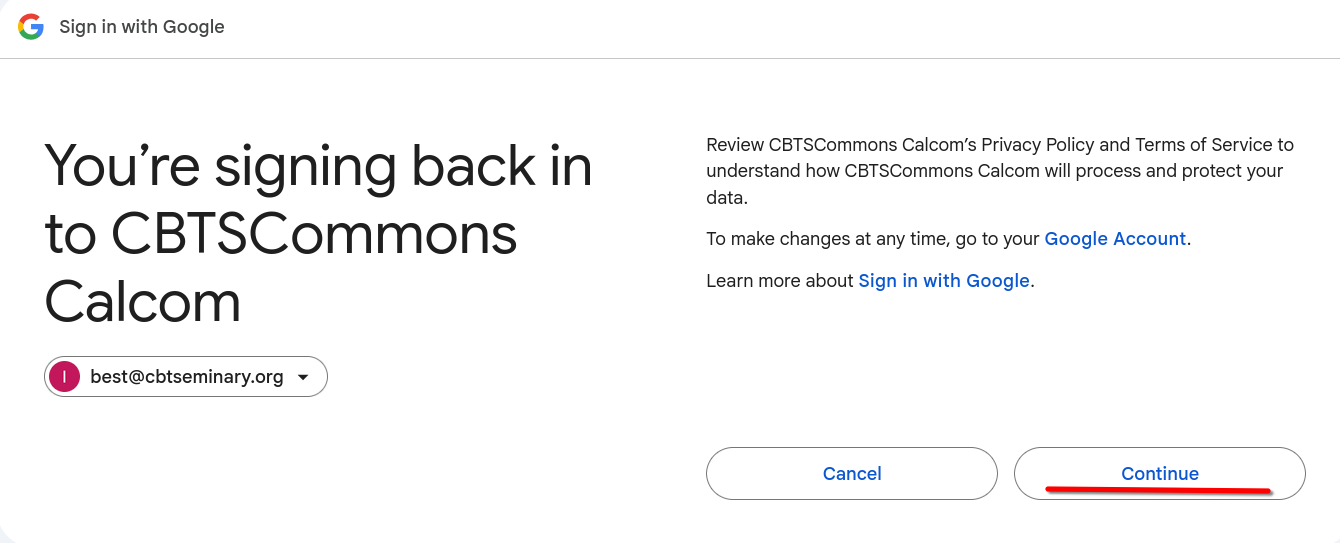
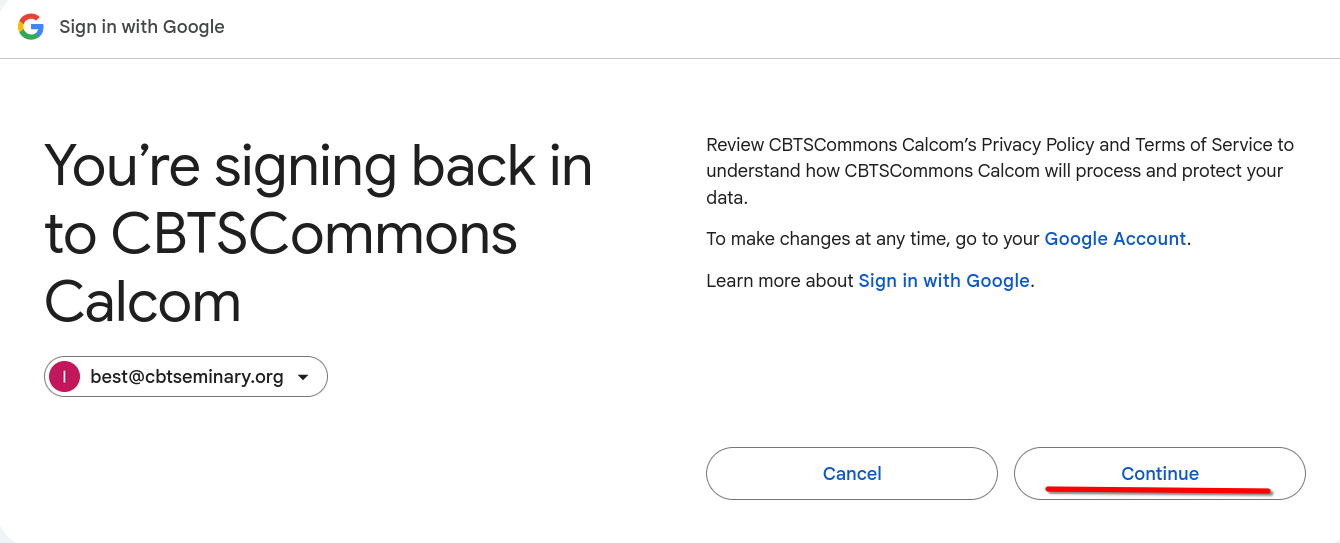
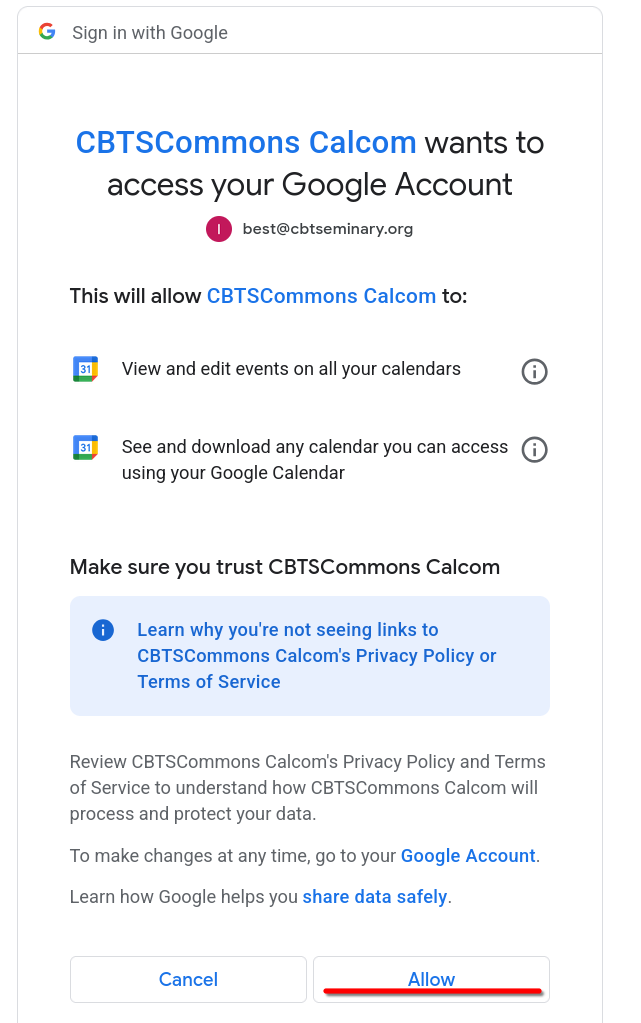
- You will be taken to a Google Login/authentication screen. Log in to your CBTS Google account and select "Continue".
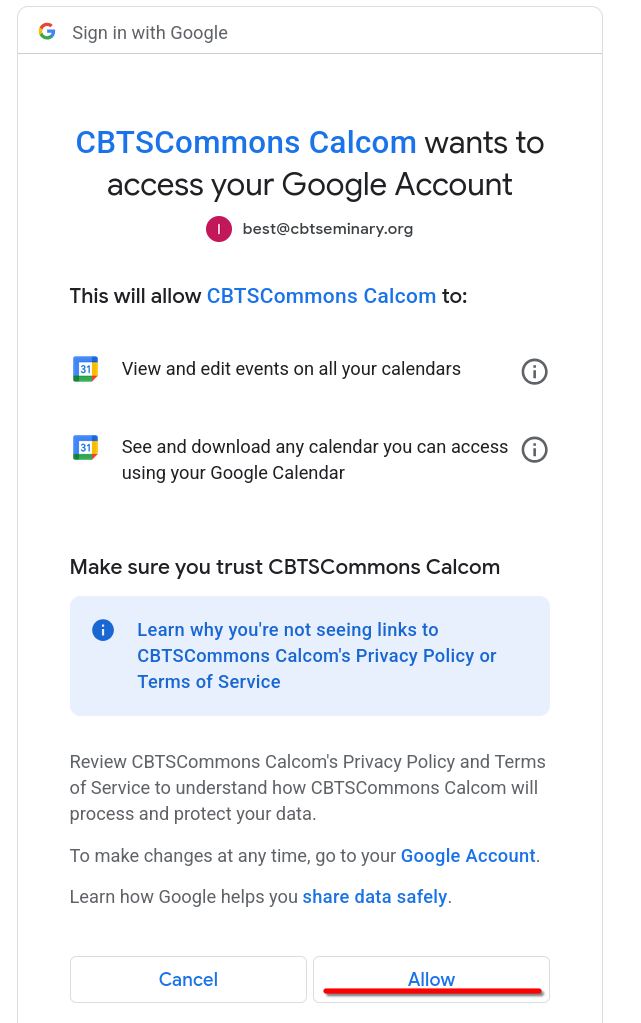
- Select "Allow" to authorize Calcom to access your Google calendar.
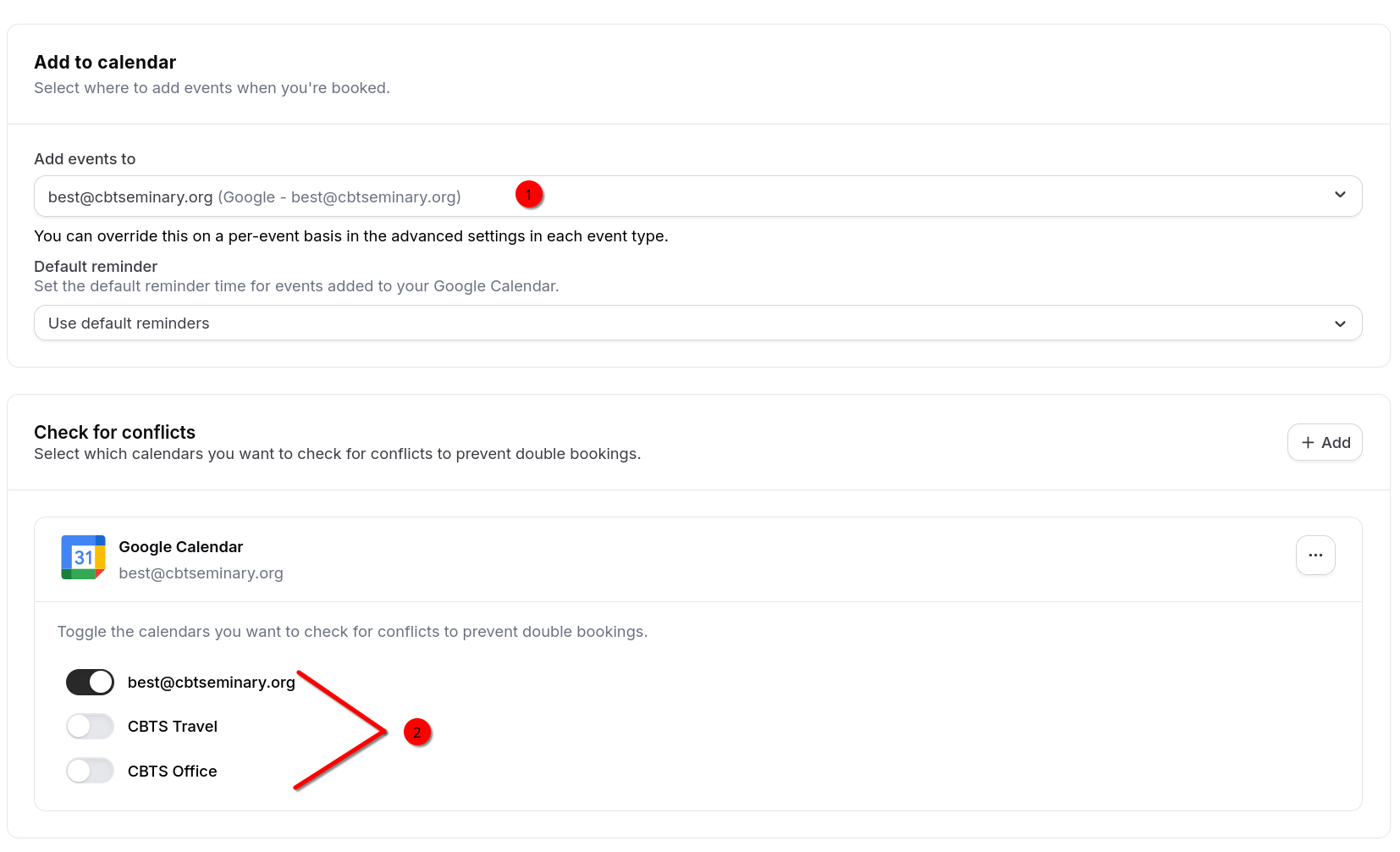
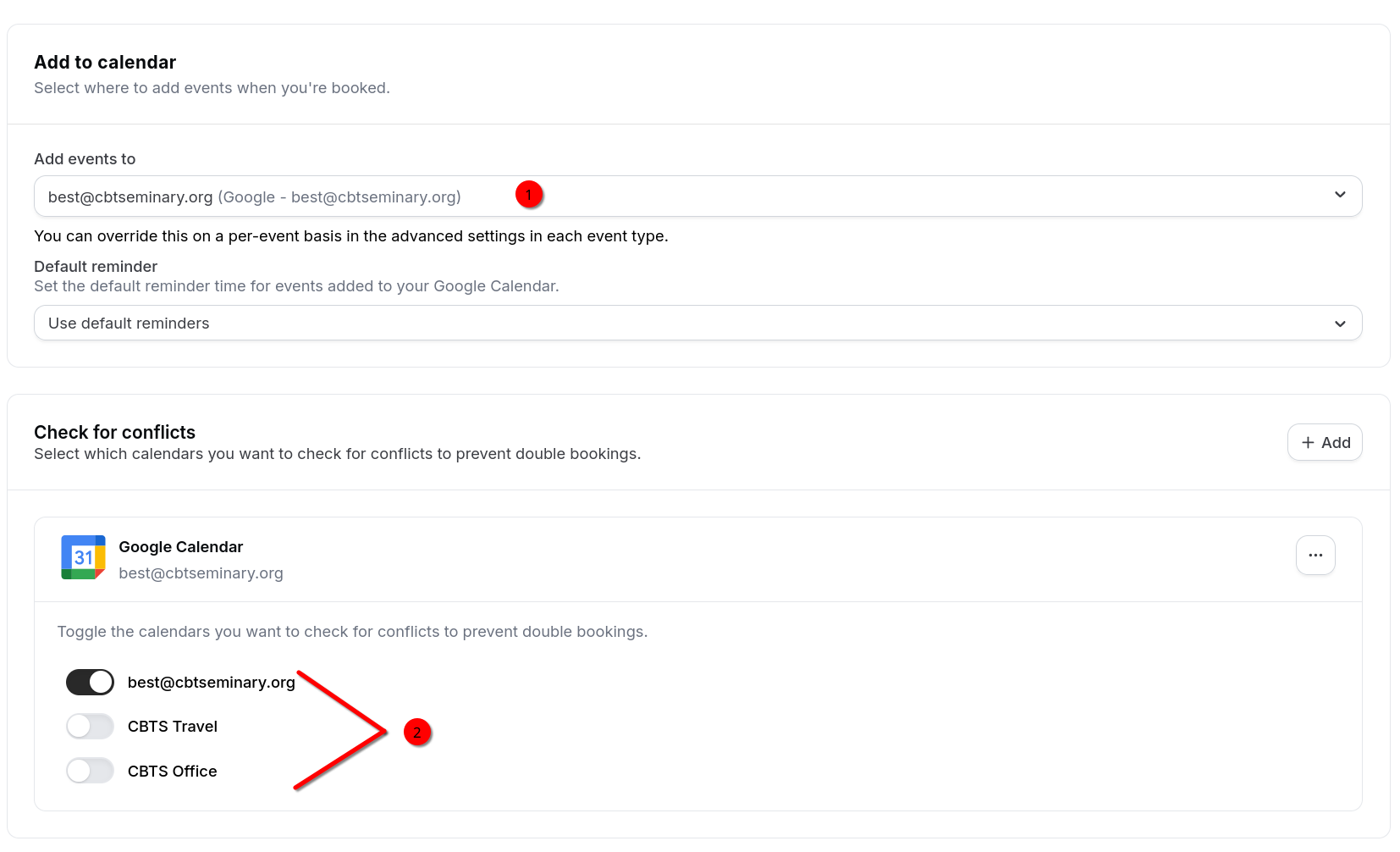
- Configure your scheduling details.
- Choose which calendar Calcom will add new meetings/events to.
- Select which calendar(s) Calcom will check for conflicts when scheduling new meetings/events. (This can be configured on a per event type basis as well.)
- Your calendar is now connected to Calcom.
Note: Further calendar-specific settings can be found under each event type in Event Types -> event options dropdown -> Edit -> Advanced