Set Display & Notification Email Address
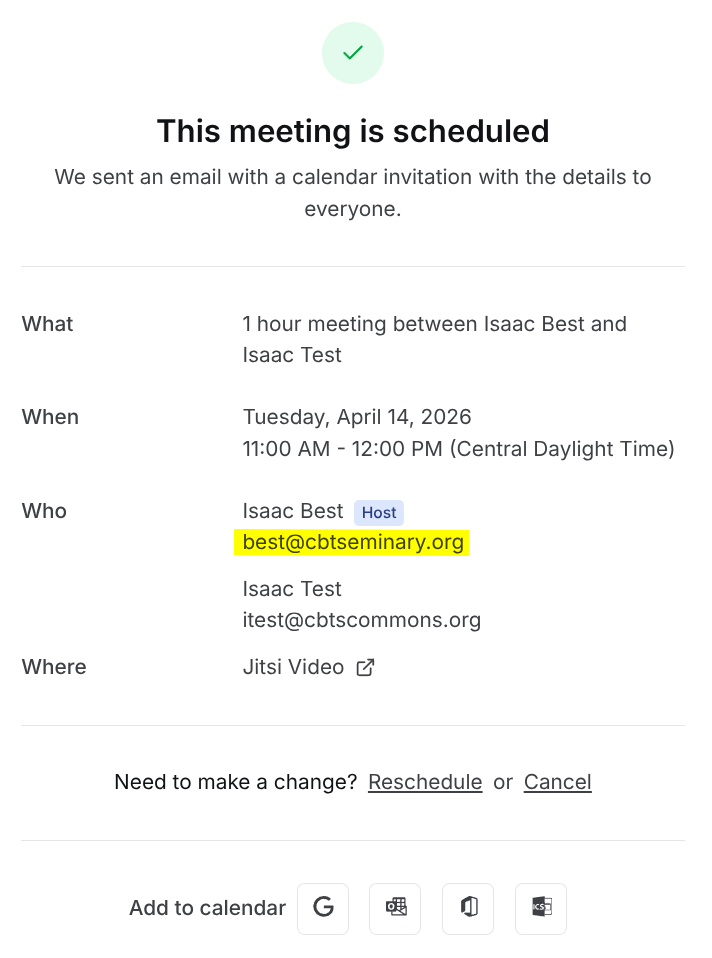
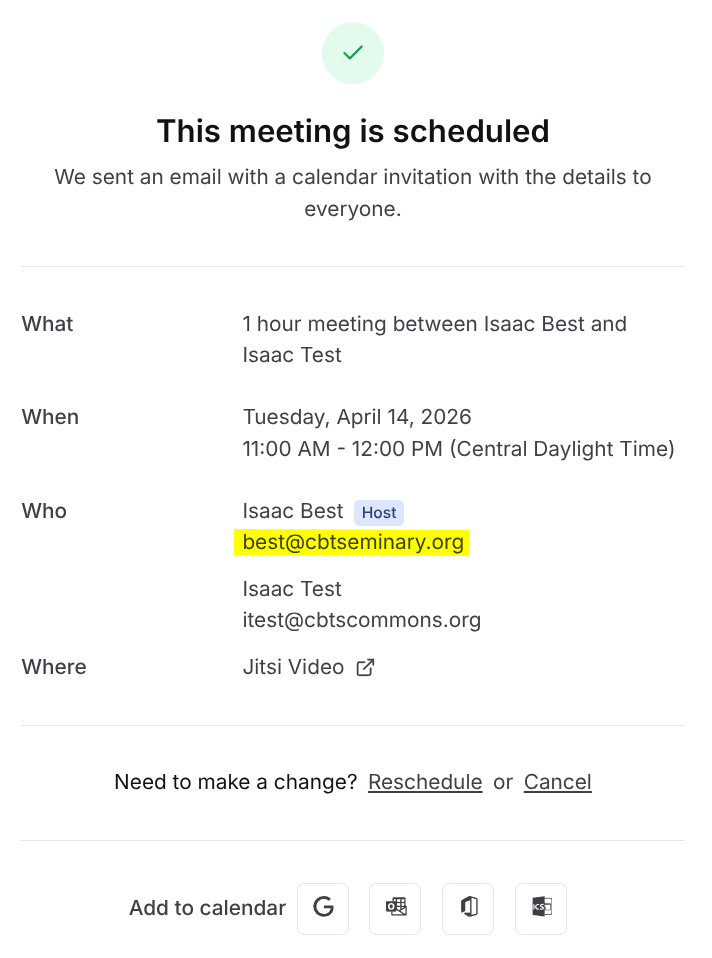
By default Calcom sends your booking notifications to your CBSTCommons email address and shows it to registrants upon booking. You will need to change the settings to show your CBTSeminary.org email address instead.
You will need to repeat this for each event type that you are using.
- Go to the Event Types page in Calcom.
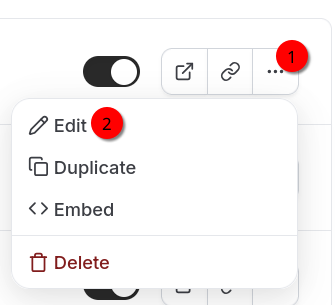
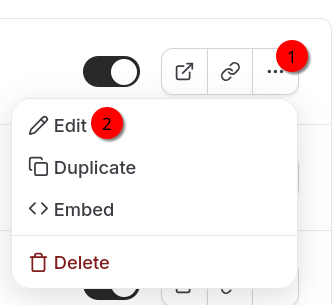
- Find the event you want to modify. On the far right of that event, select the "More" icon and click "Edit".
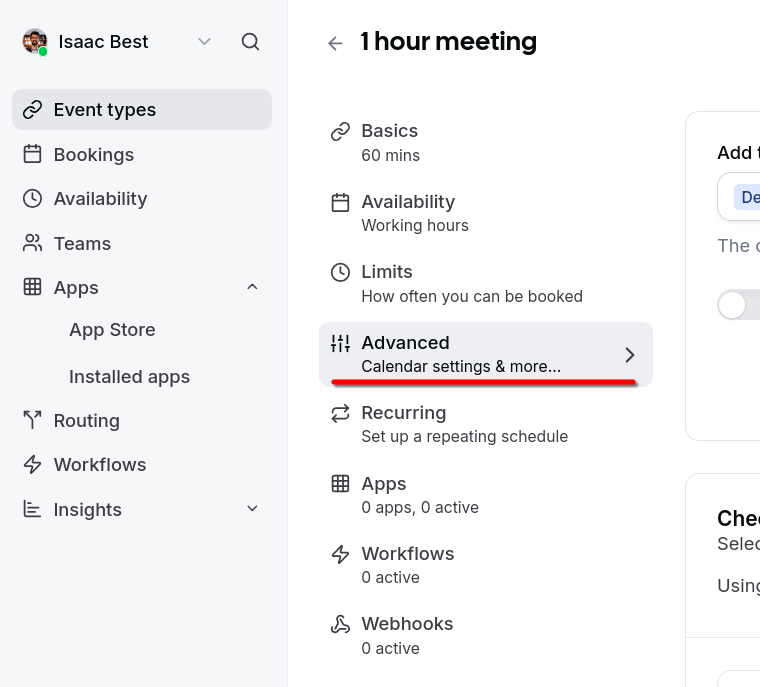
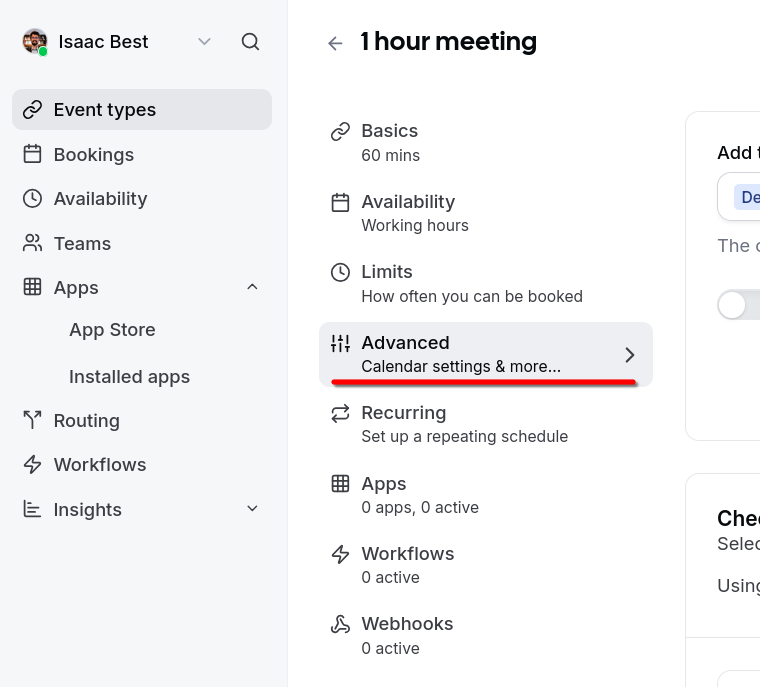
- On the sidebar towards the left, select "Advanced".
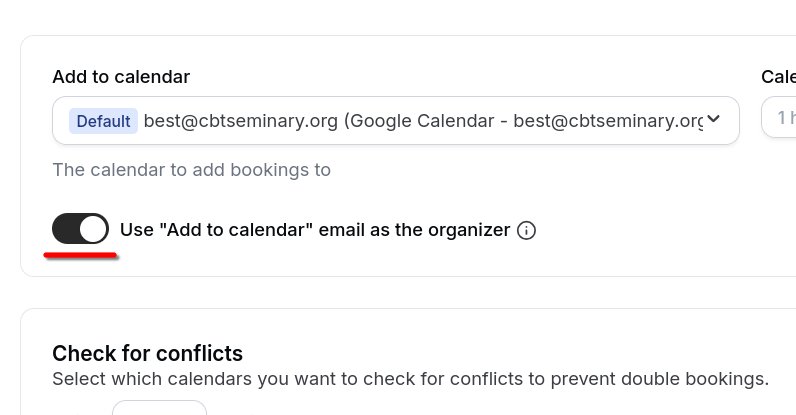
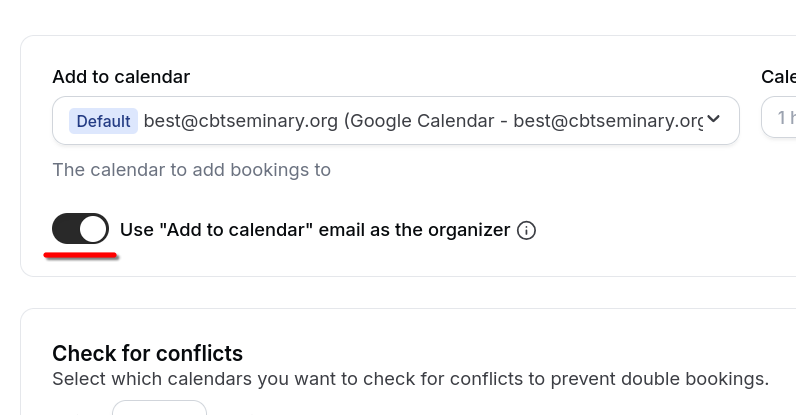
- Toggle the "Use 'Add to calendar' email as the organizer" option. Make sure the option above, "Add to calendar," is set to your CBTSeminary.org email/Google Calendar.
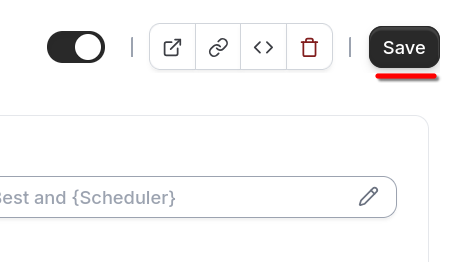
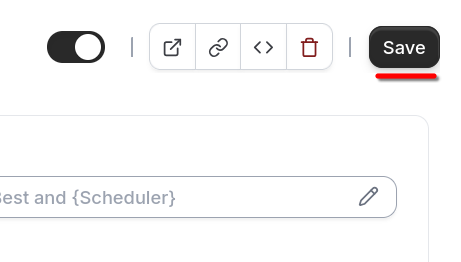
- On the top right, click "Save".
Your CBTSeminary.org email address will now show on meeting confirmations for that event and emailed booking notifications will be sent to that address.