Forward all CBTSCommons email to your existing CBTS email address
- Log in to your CBTSCommons email address - https://roundcube.cbtscommons.org
- Select the "Login with Authelia" option.
- If you are not automatically logged in, enter your CBTSCommons credentials & then select "Sign In".
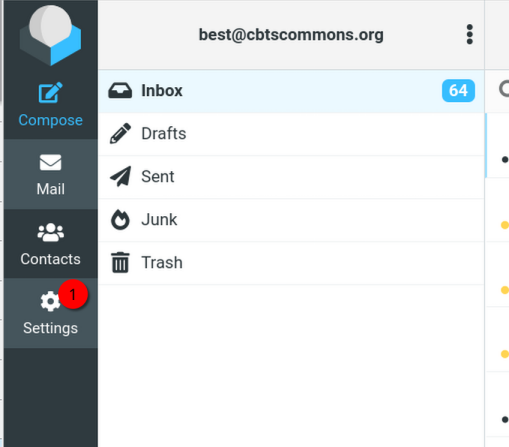
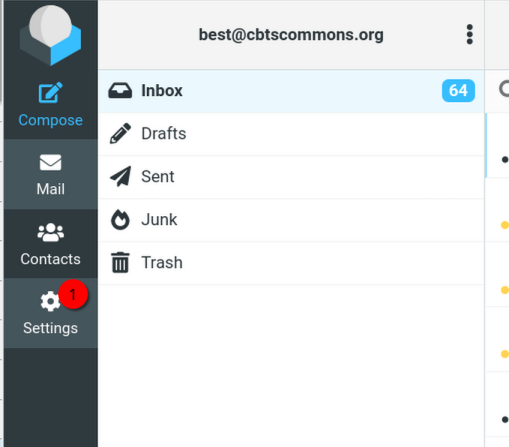
- On the left sidebar, select the Settings (gear) icon.
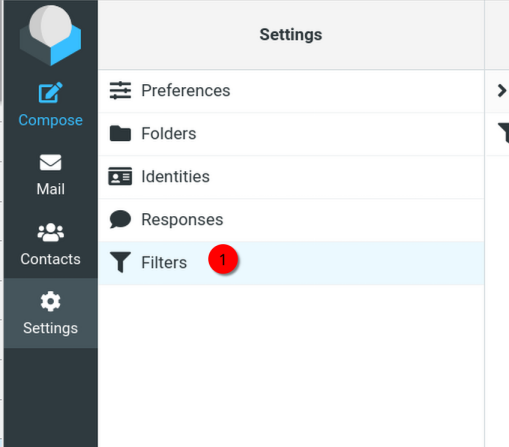
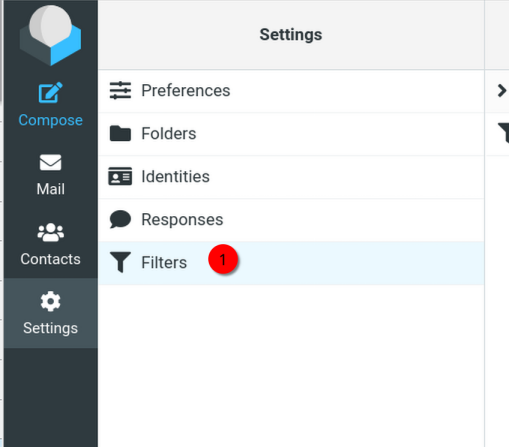
- Select "Filters" from the list just to the right.
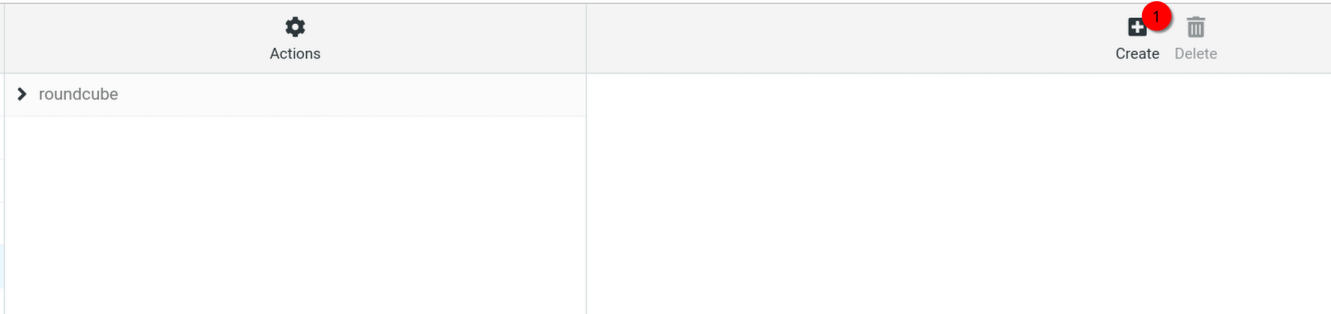
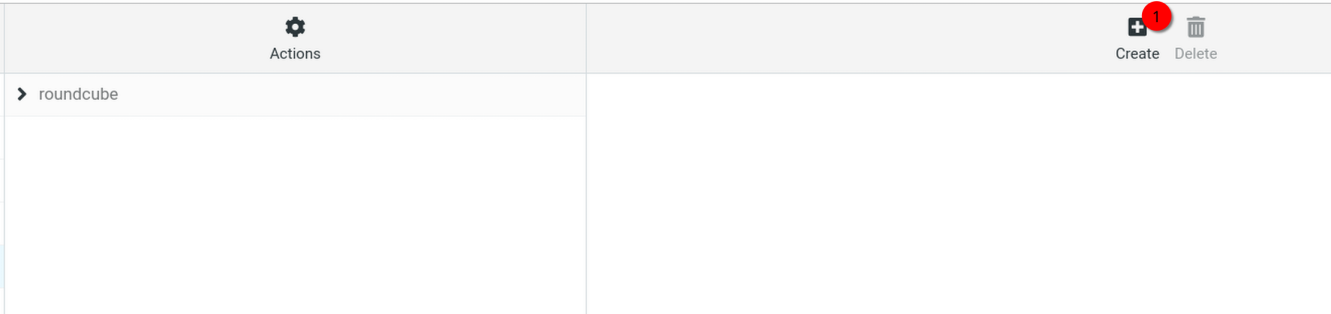
- On the top right, select "Create".
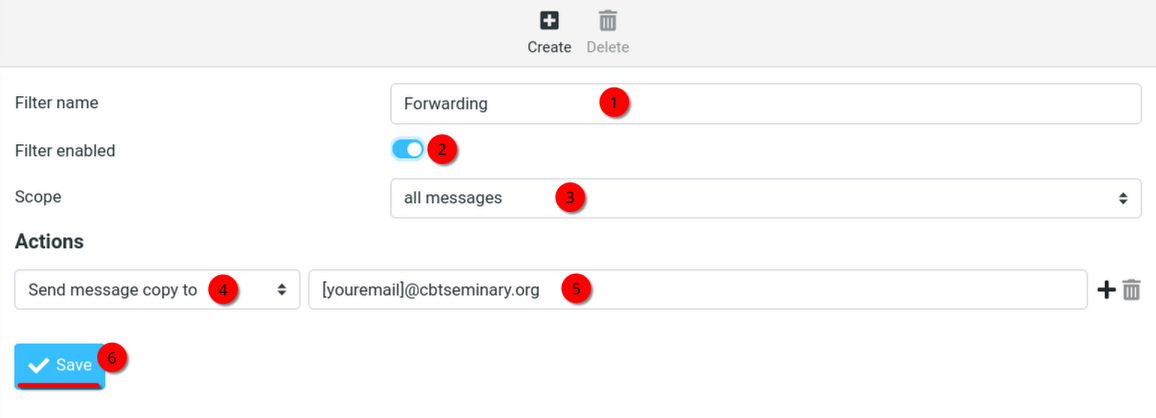
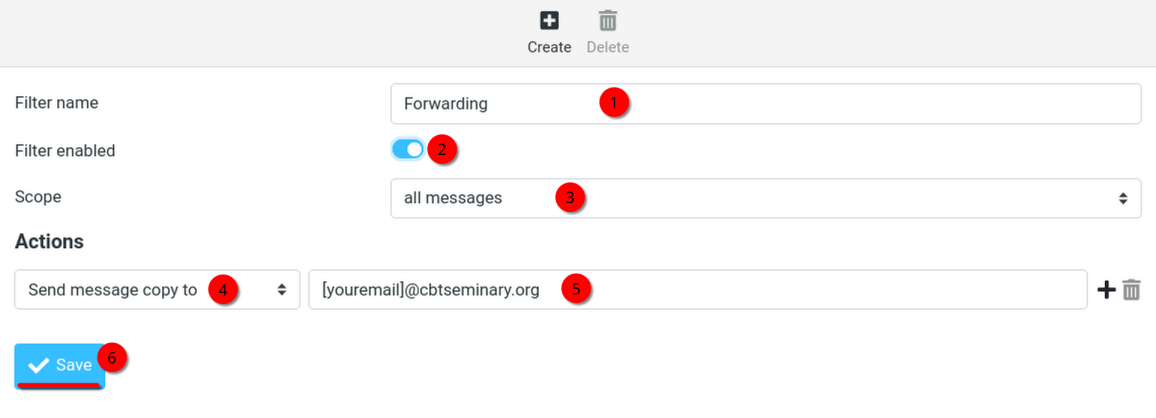
- Set the following filter options.
- Set a filter name. (The name doesn't matter, but we suggest "Forwarding".
-
Make sure the filter is set to enabled.
- Set Scope to "all messages".
- Under actions, select "Send message copy to" and
- enter your CBTS email address in the box to the right.
- Select Save.
- You will now receive all CBTSCommons email in your existing CBTS Gmail account.
Note: You may have to mark the first few forwarded emails as Not Spam in GMail.