Set up Element
Start here to to set up your Element account/access.
Install the Element Client
- Download
thethe Element client for your device - https://element.io/en/download.
- Mobile users - select Element Classic. Element X is not yet fully functional.
- MacOS users - Please use the Element Desktop app. The Element X from the App
StoreStore is not yet fully functional.
- Install it.
Note that you can also use Element directly in your browser. To do that, skip to the next step.
Sign in to Element (Desktop/Web)
If using Element in the browser, simply go to to https://element.cbtscommons.org/ and continue at #4 below.
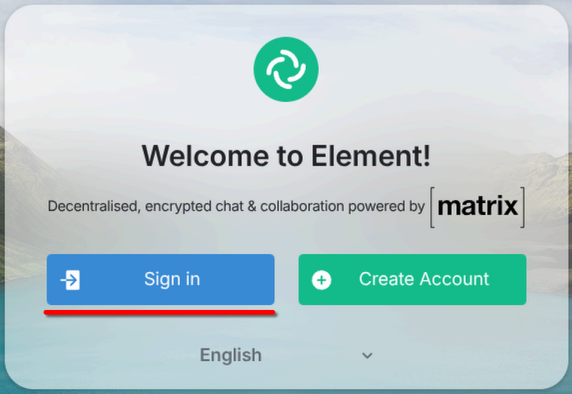
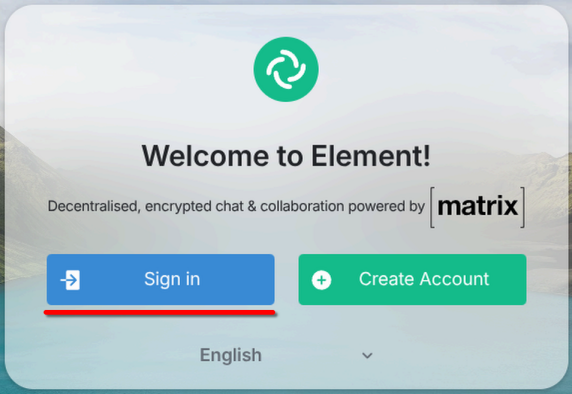
- Open the Element client. Select "Sign In".
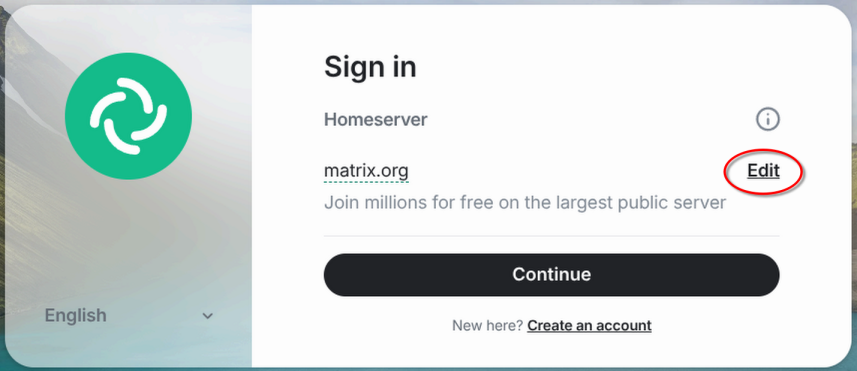
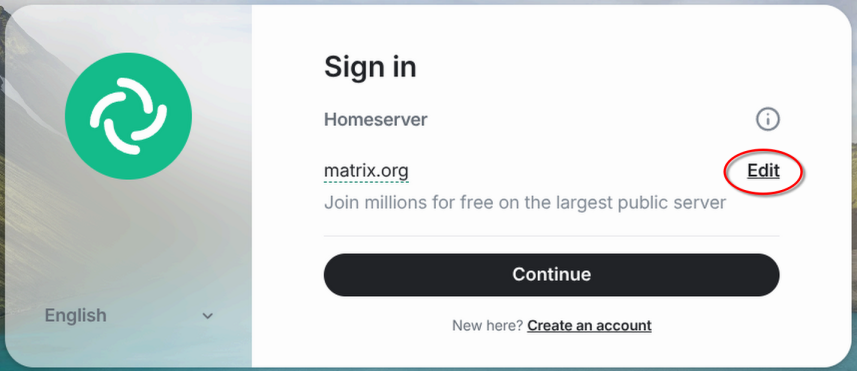
- Select "Edit" under "Homeserver".
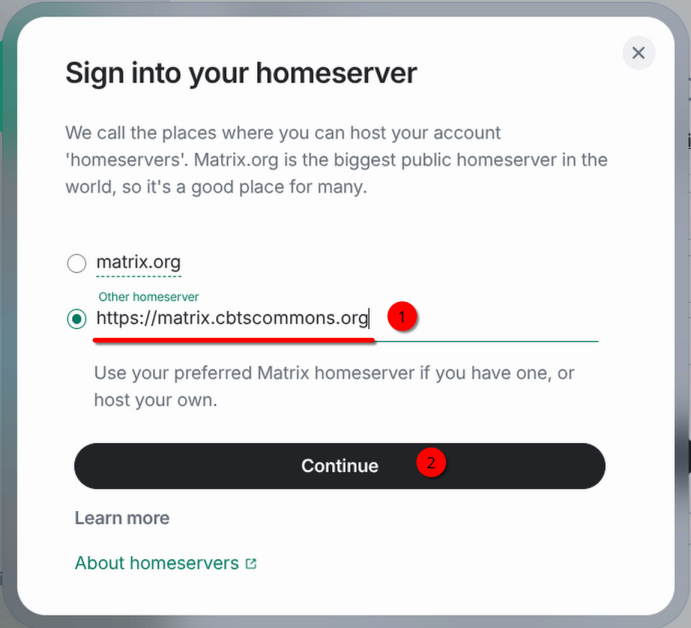
- Select "Other homeserver" and enter the following in the input box:
Select "Continue".https://matrix.cbtscommons.org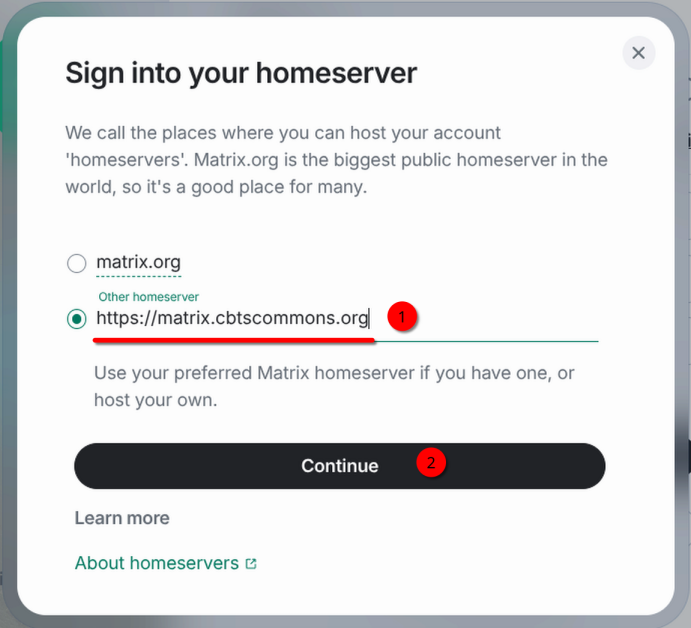
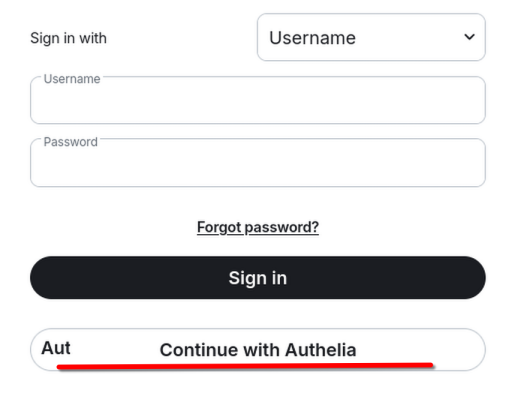
- Sign in using your CBTSCommons.org credentials.
You can either enter them directly in the Username & Password input boxes or use the "Continue with Authelia" option. Authelia is the recommended method but either works.Note: If using the direct login method, your username will take the form @username:matrix.cbtscommons.org. For instance @keach:matrix.cbtscommons.org.
- If you select "Continue with Authelia",
youyou will be taken to your browser to complete signing in.
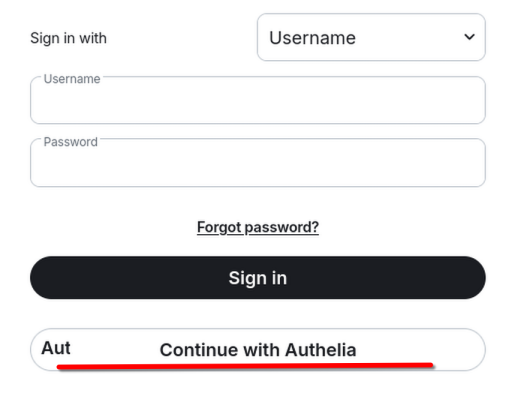
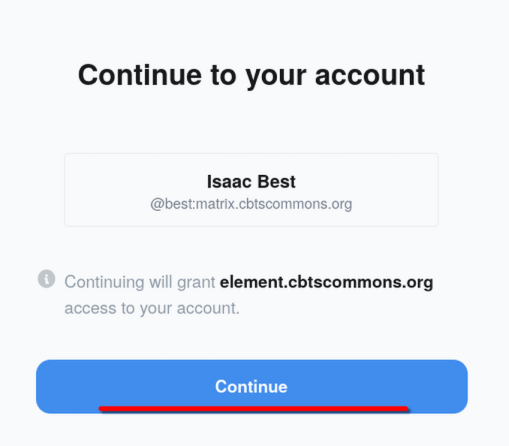
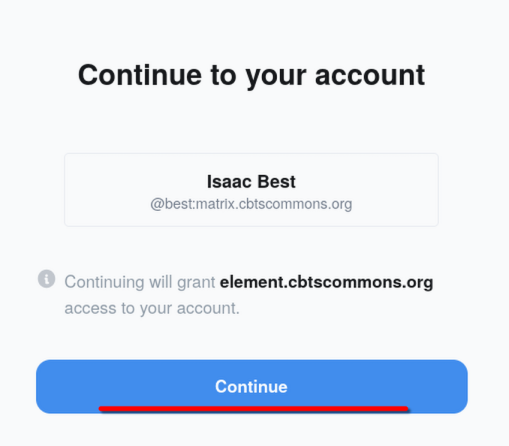
- Select "Continue" to authorize/sign in to Element.
- You are
nownow signed in.
- If you select "Continue with Authelia",
- If you have signed in before,
Sign in to Element Classic (Mobile App)
- After installing the Element Classic app, open the app and Select "Sign In".
- Select "Edit".
- Remove "matrix.org" and enter "matrix.cbtscommons.org". Click Next.
matrix.cbtscommons.org - You may either enter your credentials directly, or use Authelia to authenticate. We suggest Authelia.
- Select "Continue with Authelia"
- Your browser will open and you will be asked to sign in. Enter your CBTSCommons credentials and click "Sign In"
- Click "Continue". If asked to allow opening in Element Classic, select "Open".
YouYou should now be signed in.
- Enter credentials directly
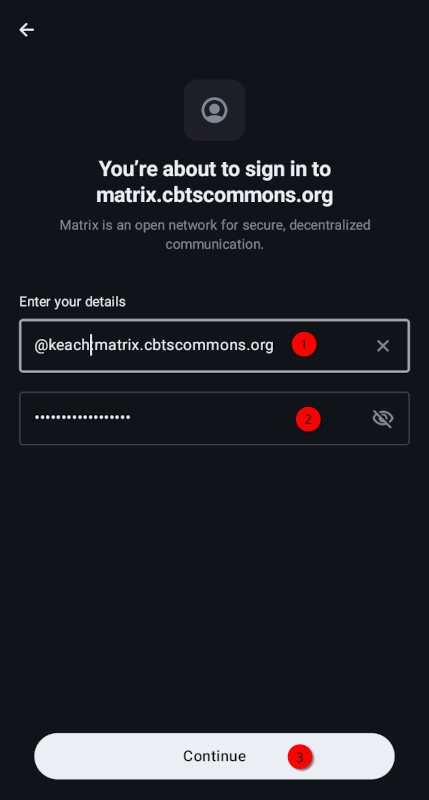
- Enter your CBTSCommons credentials. Click Continue.
Note: Your username will take the form @username:matrix.cbtscommons.org. For instance @keach:matrix.cbtscommons.org.
- You should now be signed in.
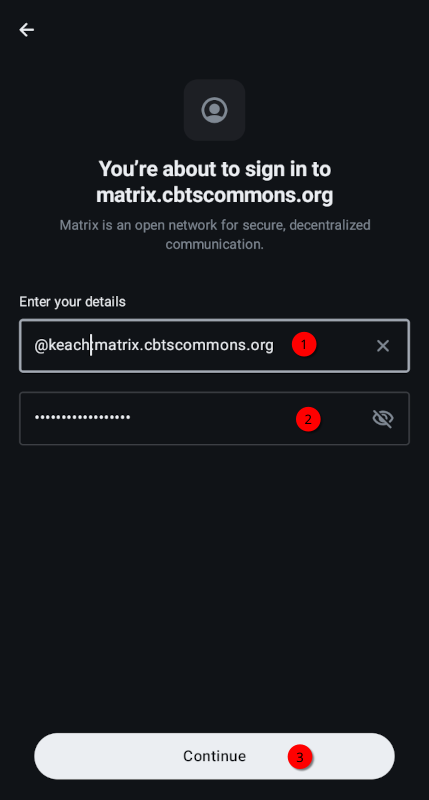
- Enter your CBTSCommons credentials. Click Continue.
- If this is your first time signing in to Element, you are done. If you have signed in before, you will need to verify this device.
Sign in to Element X (Element X is not yet fully functional; we do not recommend it)
- After installing the Element app,
- It should automatically open (or ask to open) in the Element App. If not, reach out to Isaac for assistance.
- Select "Sign in to matrix.cbtscommons.org.
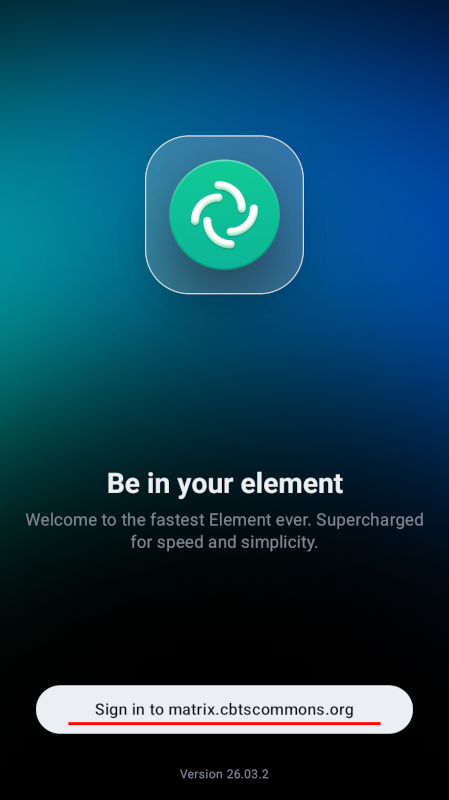
- Enter your CBTSCommons.org credentials. Click Continue.
Note: Your username will take the form @username:matrix.cbtscommons.org. For instance @keach:matrix.cbtscommons.org.
- If this is your first time signing in to Element, you are done. If you have signed in before,