How do I use the CBTS Hub?
CBTS Hub is our student payment portal. You can use it to pay semester fees, enroll in courses, and handle other school-related charges. This guide walks you through the steps to successfully navigate and use the system.
Step 1: Access CBTS Hub
Log into Pathway. Click on your name in the top-right corner to view your profile.
Click on the Hub button on the bottom-right corner.
Step 2: Choose a Category
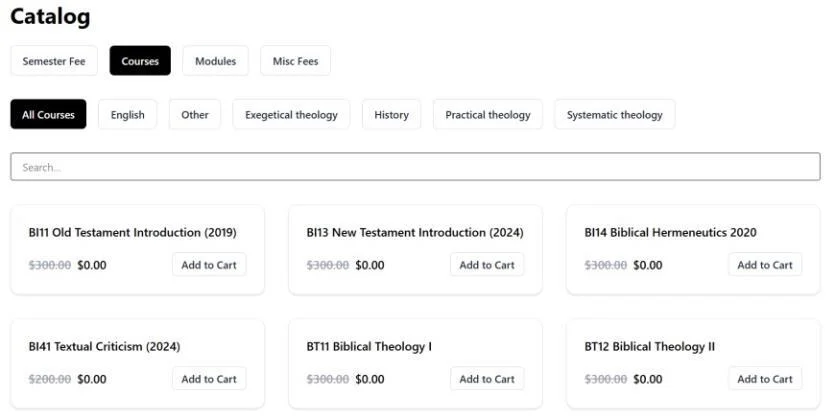
You’ll see different categories for various types of purchases such as semester fees, courses, etc.
Click a category to view available items.

Step 3: Add Items to Your Cart
After browsing the category (e.g., Courses), click 'Add to Cart' for any item you wish to purchase. You can filter courses by category for easier navigation.
Step 4: Review Your Cart
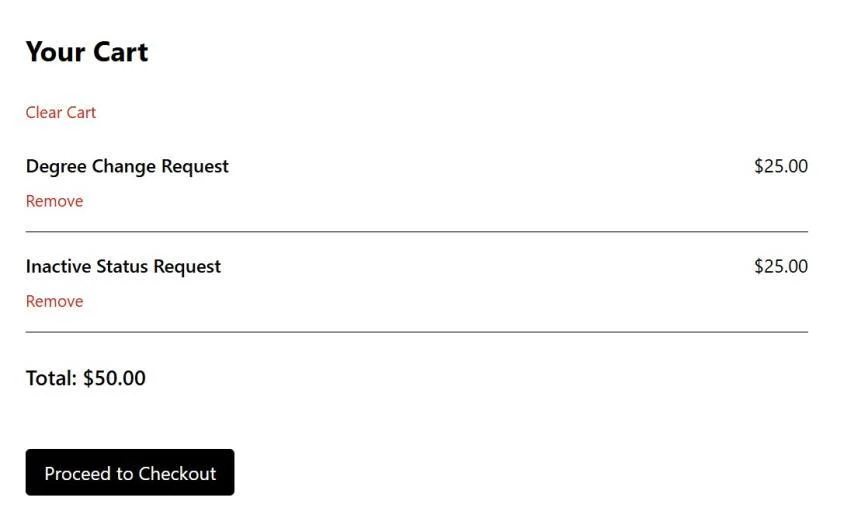
Click on the 'Cart' link at the top of the page or the cart icon.
You can remove individual items or clear the entire cart.
Step 5: Proceed to Checkout
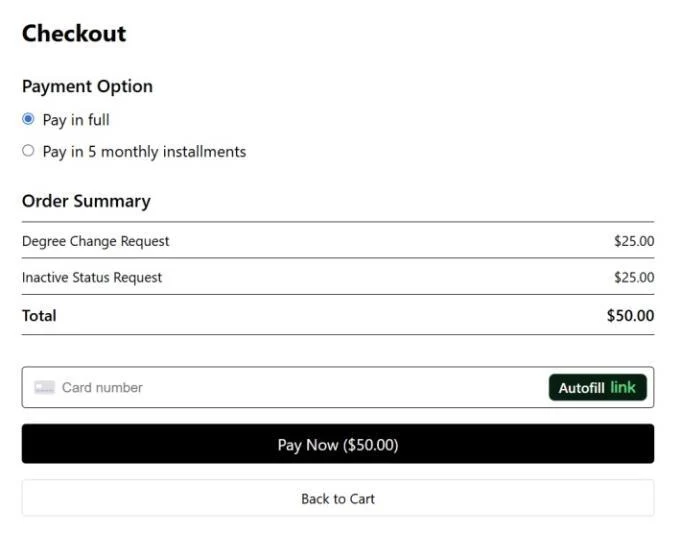
Click 'Proceed to Checkout.' Choose to pay in full or in installments, enter your card information, and complete the transaction.
Step 6: View Past Orders
To review your past orders, click on your profile icon and select 'Orders.'

Frequently Asked Questions (FAQ)
Q: Can I pay in installments?
A: Yes, CBTS Hub allows you to choose between paying in full or in installments during checkout. Check out this article for details.
Q: What if I accidentally purchase the wrong item?
A: Before payment, you can remove items from your cart. After payment, please contact
support@cbtseminary.org for assistance, or use the Support tab within Pathway.
Q: How do I know my payment was successful?
A: You'll receive a confirmation screen and can view all completed orders in your profile under 'Orders'.
Q: Who do I contact for technical help?
A: Please reach out to support@cbtseminary.org or click the "Contact Us" button at the top of this page.