Skip to main content
1. Creating Your Vaultwarden Account
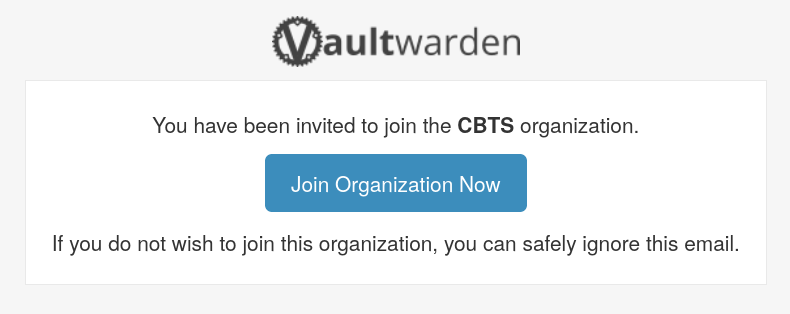
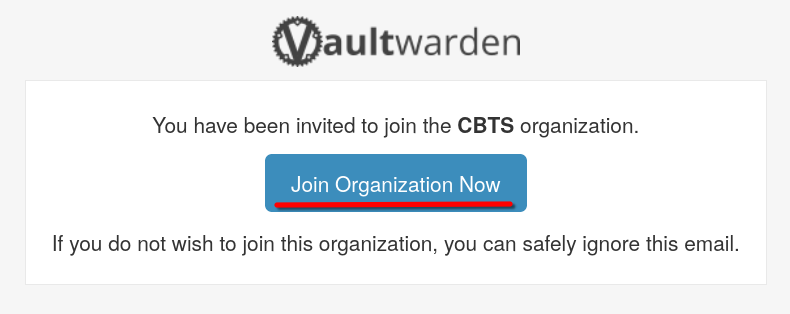
- You will receive an email with an invite to set up your Vaultwarden account. Click "Join Organization Now".
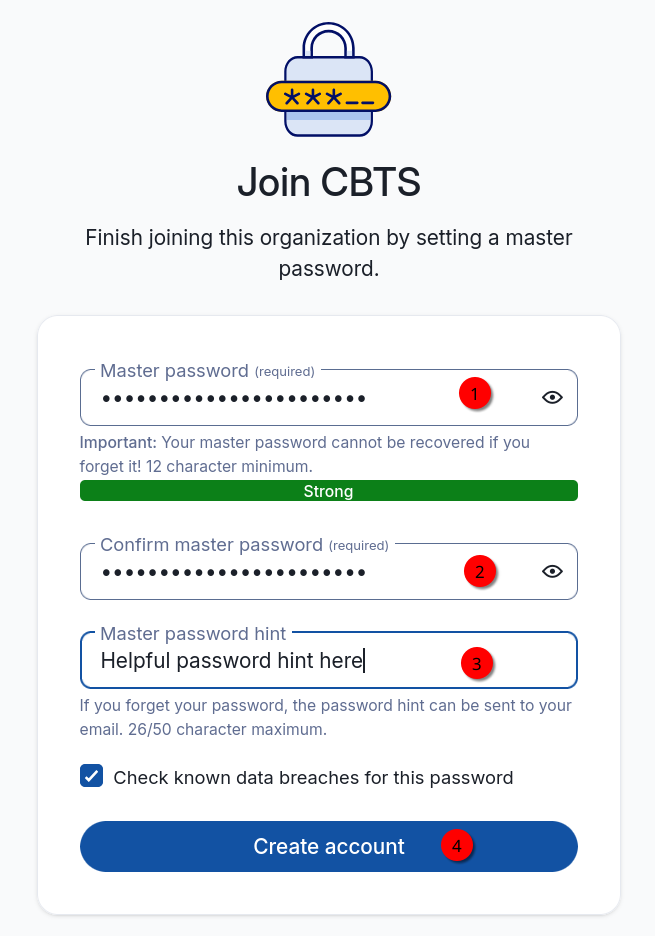
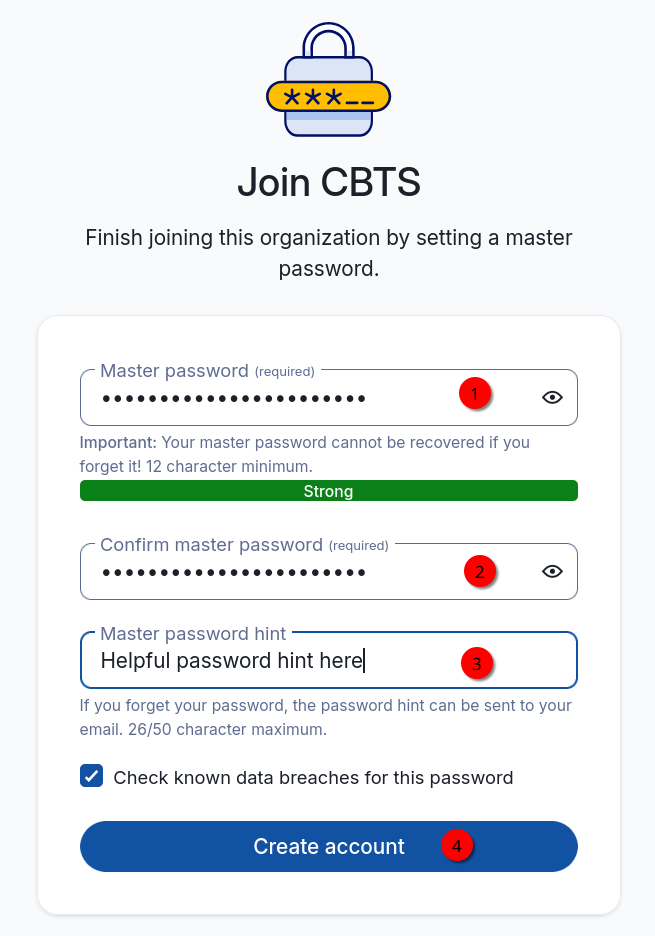
- An account creation page will open. Fill out the password lines and create a helpful password hint. Then click "Create Account".
Note: This password can be different from your CBTSCommons password. We suggest using the same password but it is your choice.
- Your account has been created. You will be offered the Bitwarden browser extension which integrates Vaultwarden with your browser; we recommend installing it.
- If you install the extension, close the tab it opens up.
- You will not immediately have access to the CBTS shared passwords; we can only grant accounts access after they have been set up.
- Please email Isaac (best@cbtseminary.org) to let him know you have set up your Vaultwarden account; he will grant you access to the shared passwords.
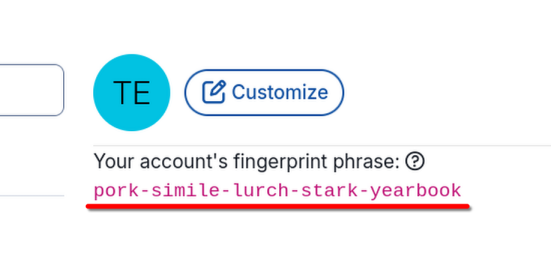
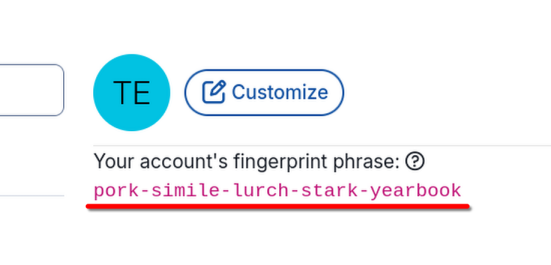
- In that email, please include your Vaultwarden account's fingerprint phrase:
- Go to your Vaultwarden Account settings - https://vaultwarden.cbtscommons.org/#/settings/account
- Copy the fingerprint phrase to your email draft