Logging in to the Browser Extension
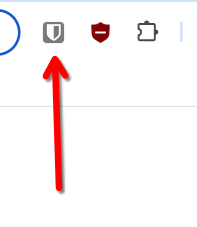
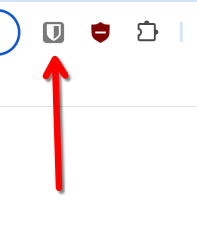
- Click the extension icon in your browser menu/tool bar.
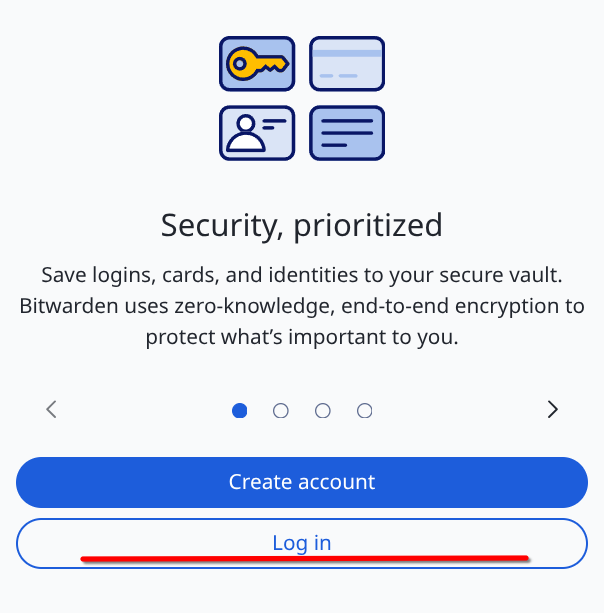
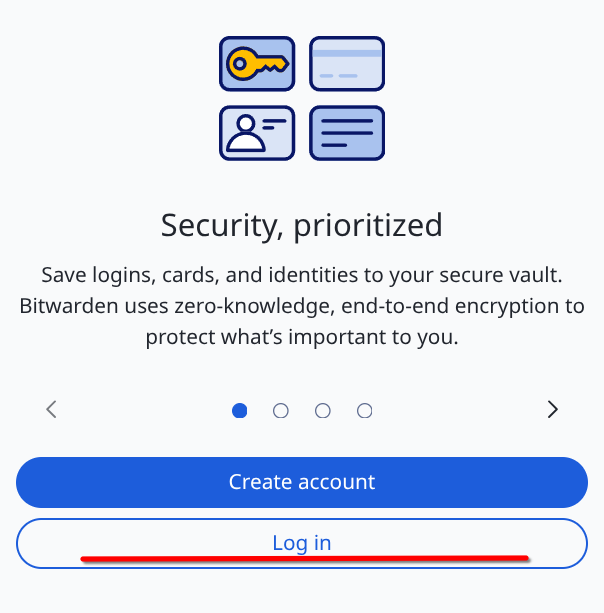
- At the bottom of the extension window, select "Log In".
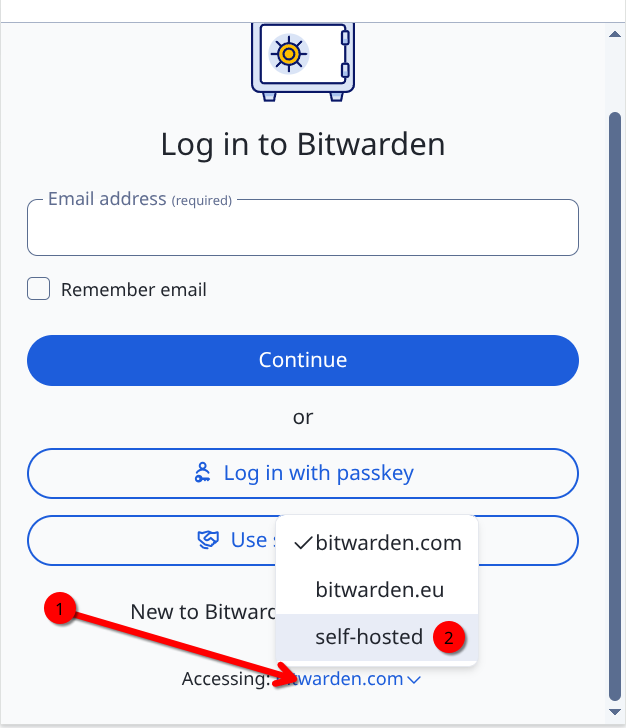
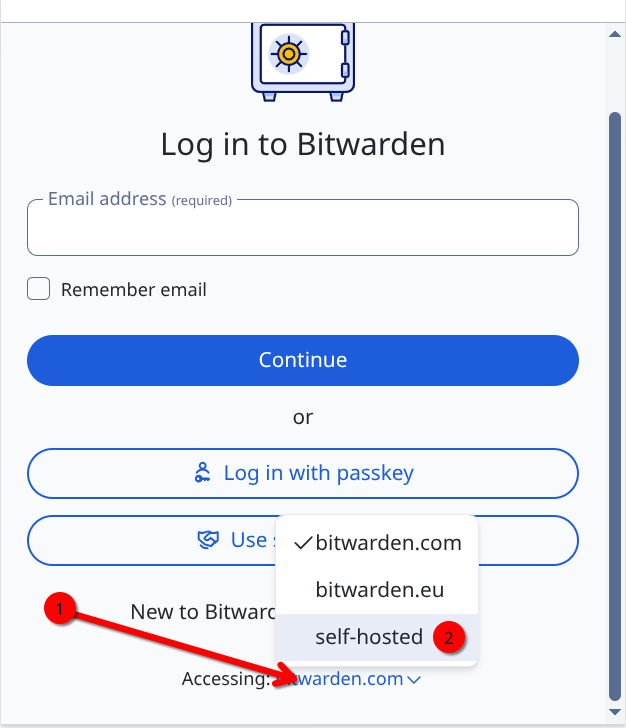
- At the bottom of the next screen (you may need to scroll down), select "Accessing: bitwarden.com", then select "self-hosted".
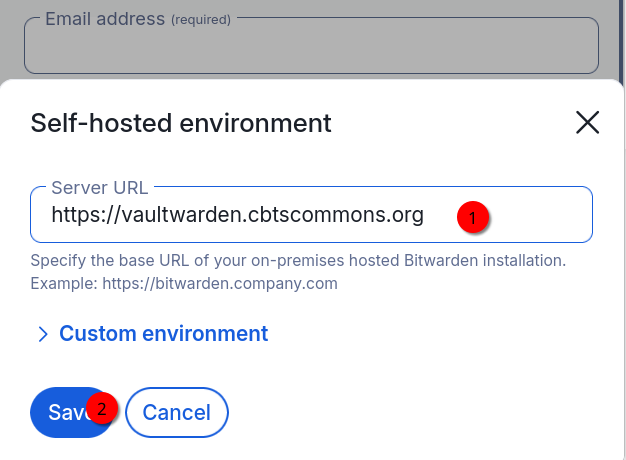
- Fill out the Server URL blank with
then click Save.https://vaultwarden.cbtscommons.org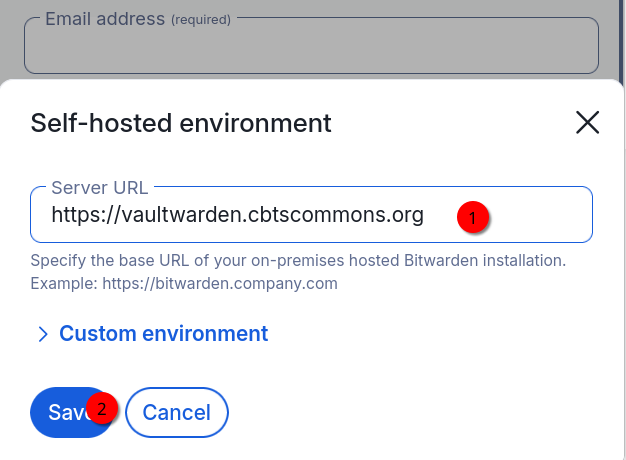
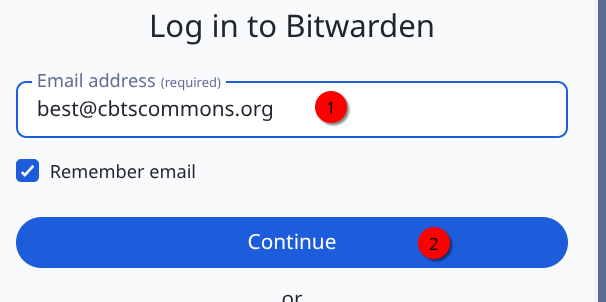
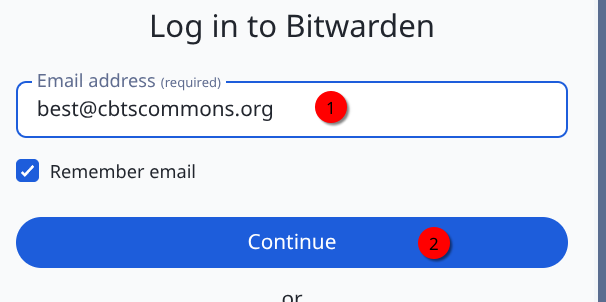
- In the Email Address field, enter your CBTSCommons username/email. Click continue.
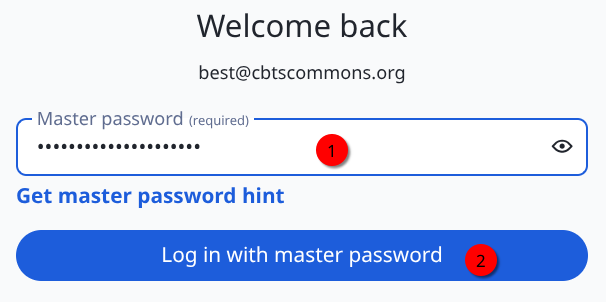
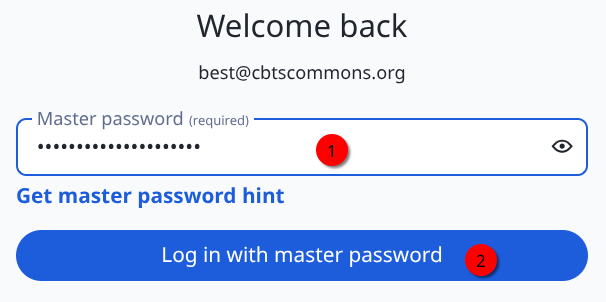
- Enter your Vaultwarden password, then click "Login with master password".
- You are now logged in on the extension.