Change Ticket "Customer"
This is also what you should do if you want to send an email from the ticket to someone other than the "customer". Just remember that Freescout sends the last message as an email reply in addition to your newest message.
- Open the ticket in Freescout.
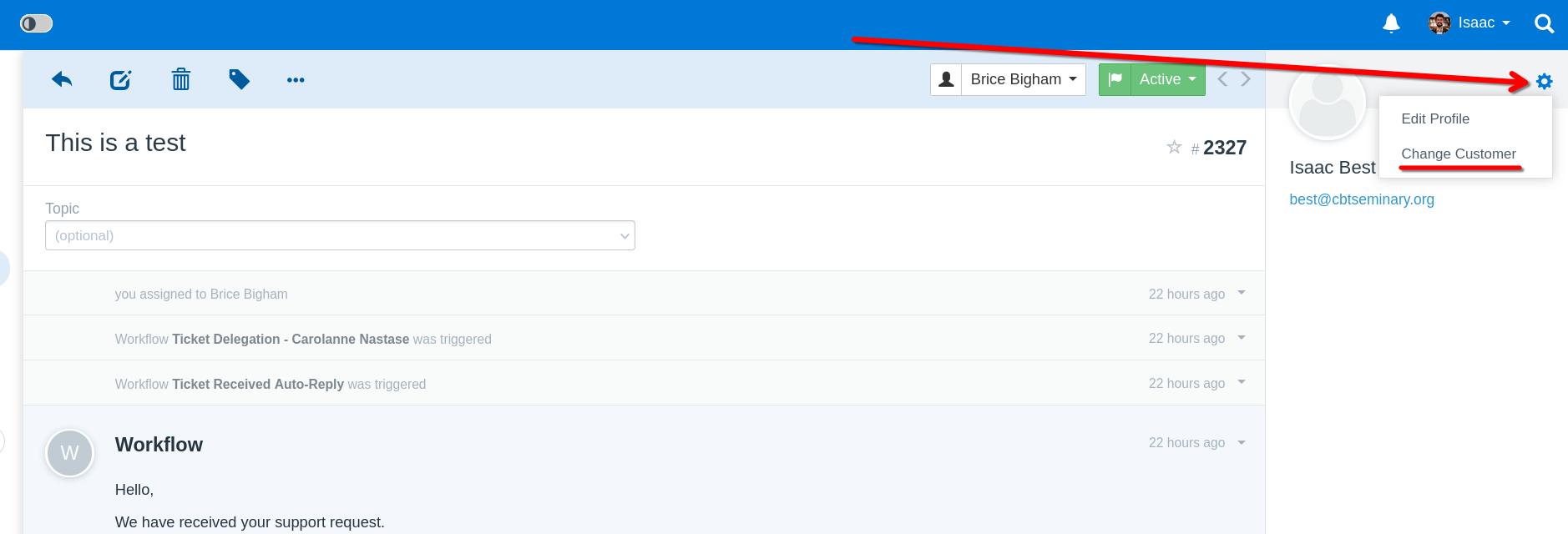
- On the far right, look for the gear icon next to the ticket "customer" name. Click it.
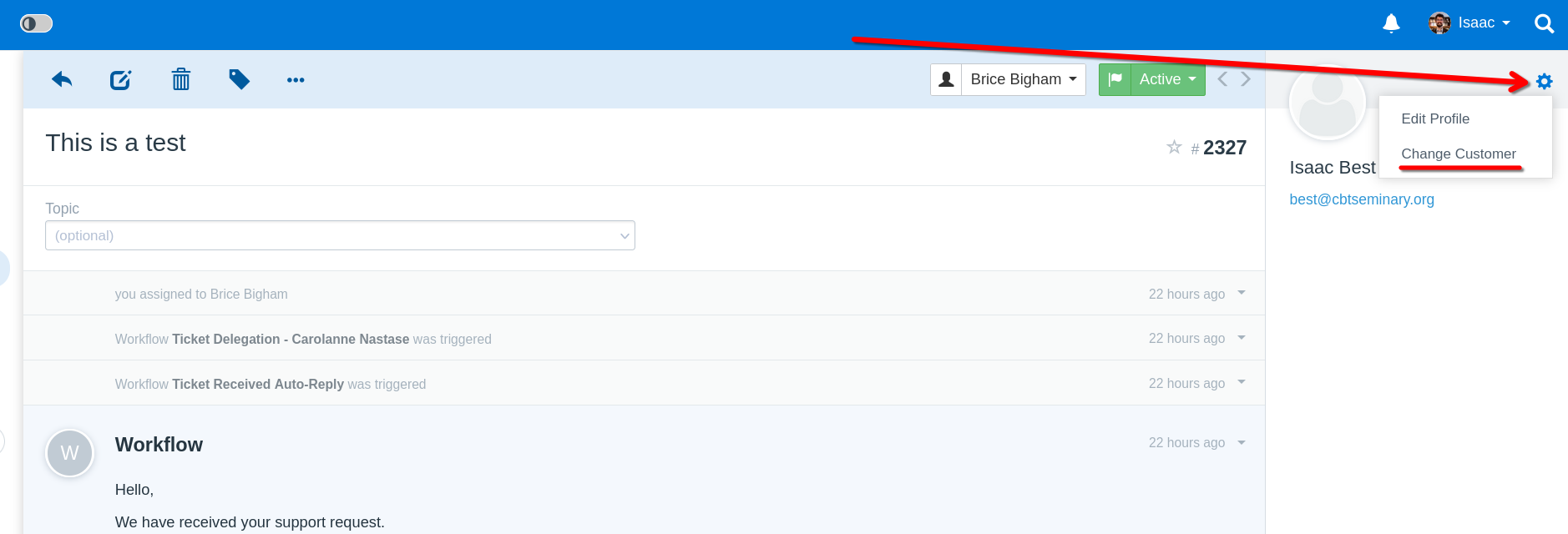
- Select "Change Customer" in the drop-down menu.
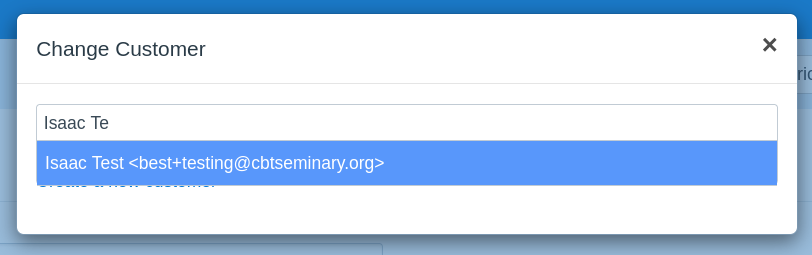
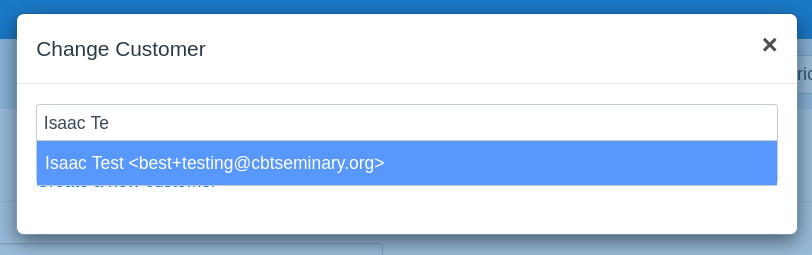
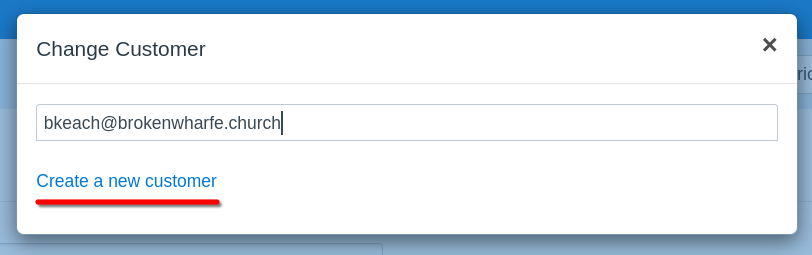
- In the pop-up, enter the name or email address of the new ticket "customer".
-
If the "customer already exists in Freescout -
- If the "customer" already exists in Freescout, select him/her from the drop-down.
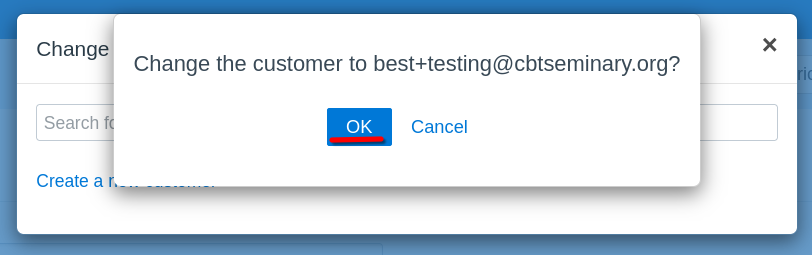
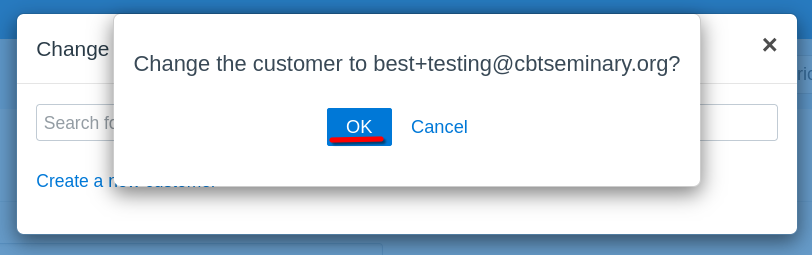
- Then select "OK" to confirm.
-
You have successfully changed the ticket "customer".
- If the "customer" already exists in Freescout, select him/her from the drop-down.
- If the "customer" does not exist in Freescout -
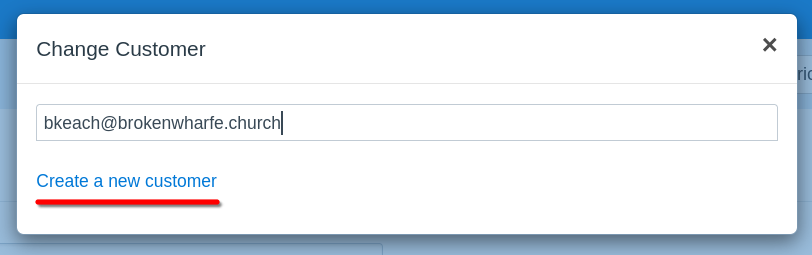
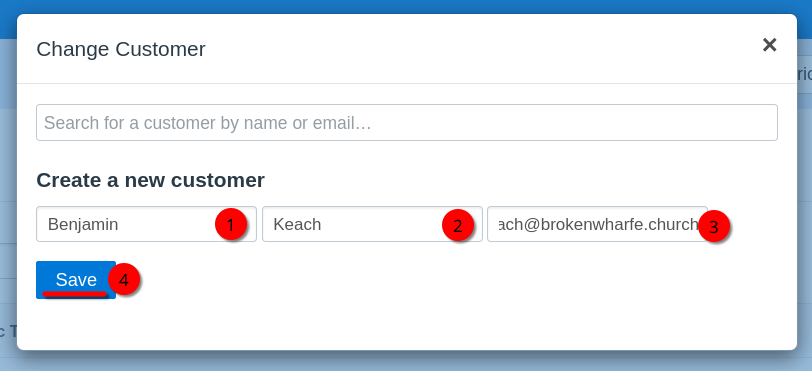
- If the "customer" does not exist in Freescout, select "Create a new customer".
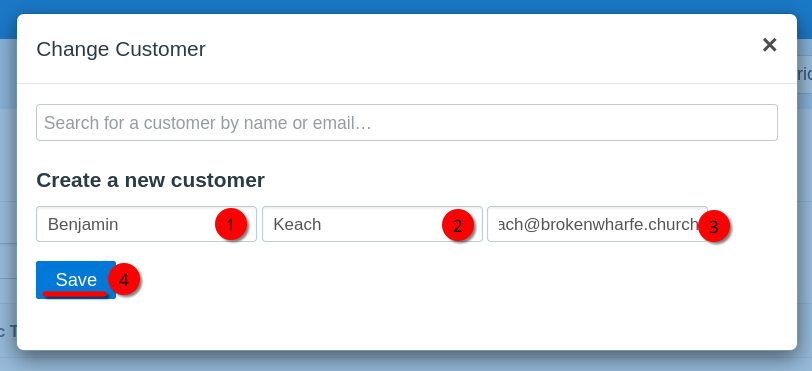
- A new section will appear. Enter the "customer" name and email address, then select "Save".
-
You have successfully changed the ticket "customer".
- If the "customer" does not exist in Freescout, select "Create a new customer".